
Virtual camera
SessionHUD can appear as a camera in Zoom, Teams, Meet, OBS and QuickTime, with the take number drawn into the picture — over the live room, or on a backdrop of its own. Video apps treat that whole frame as your video, so their own mirroring, blur and virtual backgrounds have to be off.
1. Set up the camera
- Install the camera once: press Install Camera Extension… in Settings ▸ Virtual Camera and allow it when macOS asks (System Settings ▸ General ▸ Login Items & Extensions ▸ Camera Extensions). Some updates replace the camera: SessionHUD then reopens once by itself, and a video app that was already open may need quitting and reopening. If SessionHUD says to restart the Mac, the camera was in use and finishes installing at the restart.
- In SessionHUD, turn on the Virtual Camera output with its Camera button at the bottom of the main window. To have your room in the picture, select the Camera element in the camera’s designer and choose a Source.
- In Zoom, Teams, Meet or any other app that uses a camera, choose SessionHUD as the camera.
Where each app keeps its camera choice
- Zoom — Settings ▸ Video & effects, the camera menu under Video. In a meeting, the arrow beside the video button.
- Microsoft Teams — Settings and more (…) ▸ Settings ▸ Devices ▸ Camera. In a meeting, the arrow beside Camera.
- Google Meet — before you join, the camera menu under your preview. In a meeting, More options (⋮) ▸ Settings ▸ Video ▸ Camera. Your browser needs camera access in System Settings ▸ Privacy & Security ▸ Camera.
- OBS — add a Video Capture Device source and choose SessionHUD as its Device.
- QuickTime Player — File ▸ New Movie Recording, then the arrow beside the record button.
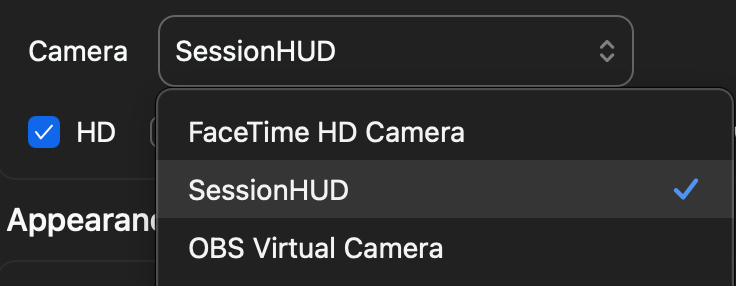
If an app that was already open does not list SessionHUD, quit it and open it again.
The camera sends 720p at 30 fps. To send 1080p, choose 1080p under Output format in Settings ▸ Virtual Camera; the change takes effect once every app has closed the camera.
2. Turn off the video app’s effects
Do this in the video app, for the SessionHUD camera. Its effects are applied after SessionHUD draws the frame, so they blur, flip or crop the take number along with everything else. If you want a mirrored room, use SessionHUD’s own Mirror, which flips the room before the HUD is drawn.
Zoom
Everything is in Settings ▸ Video & effects:
- Under Video, turn off Mirror my video preview. It flips only your own preview — the meeting sees the picture the right way round — but it makes the take number read backwards to you, which looks like a fault.
- Under Appearance, turn off Touch up my appearance, Adjust for low light, Portrait lighting and Auto-framing. The first three reprocess the whole frame and soften the text in it; Auto-framing crops and moves the picture, and can cut the HUD out of it.
- Under Backgrounds, choose None.
- Leave Avatars, Video filters and Studio effects off.
Microsoft Teams
- In Settings and more (…) ▸ Settings ▸ Devices, turn off Adjust brightness, Soft focus and Green screen. Each reprocesses the frame and softens the text in it.
- Set background effects to None before you join. In a meeting, More actions ▸ Video effects and settings ▸ Video effects ▸ None.
- Turn off Mirror my video in the meeting’s video settings. Like Zoom’s, it flips only your own view, and the take number reads backwards there.
Google Meet
Meet keeps its effects behind Apply visual effects, at the bottom right of your preview before you join or on your self view in a meeting:
- Press Turn off visual effects to remove any background, blur or filter.
- Under Appearance, turn off Portrait touch-up, Studio makeup, Studio lighting, Studio look and Framing. Framing crops and moves the picture, and can cut the HUD out of it.
Meet always mirrors your own self view and has no switch for it. The take number reads backwards to you there; everyone else in the meeting sees it the right way round.
OBS and other apps
- Do not add a virtual-background, blur, or mirror filter on the SessionHUD source.
- Do not flip the source with right-click ▸ Transform ▸ Flip Horizontal.
3. Camera layouts
The camera has its own designer: choose Virtual Camera in the Outputs list. A camera layout is a background — a color or an image — with your camera, cards, HUDs and images placed on it. Pick one from the Camera Layouts list, or from the Camera button’s menu. The camera itself is chosen on the layout’s Camera element. Two ship:
- Standard — your camera filling the frame with the HUD Window’s Banner across the top.
- Backdrop — your camera in a box on the Dusk backdrop, beside a column of cards: the take, a record light (red while recording, green on playback) and the elapsed time. The SessionHUD mark, the track and the talent sit over the picture.
With a license, change either of them freely. Once you have changed one, right-click it and choose Restore Default to put it back the way it shipped. To keep the preset and start your own from it, right-click and choose Duplicate; your own can be renamed and deleted the same way.
Mirror, under the canvas, flips the room in every camera layout. Cards, HUDs and images are never flipped.
4. Designing your own license required
- Select Background in the Elements list and choose its color or image, described below.
- Use + to add Cards, HUD Layouts, the Camera and Images such as your logo. Cards and HUDs together go up to eight in one picture.
- Drag elements on the canvas to place them; the corner dot resizes. Elements higher in the list are drawn in front.
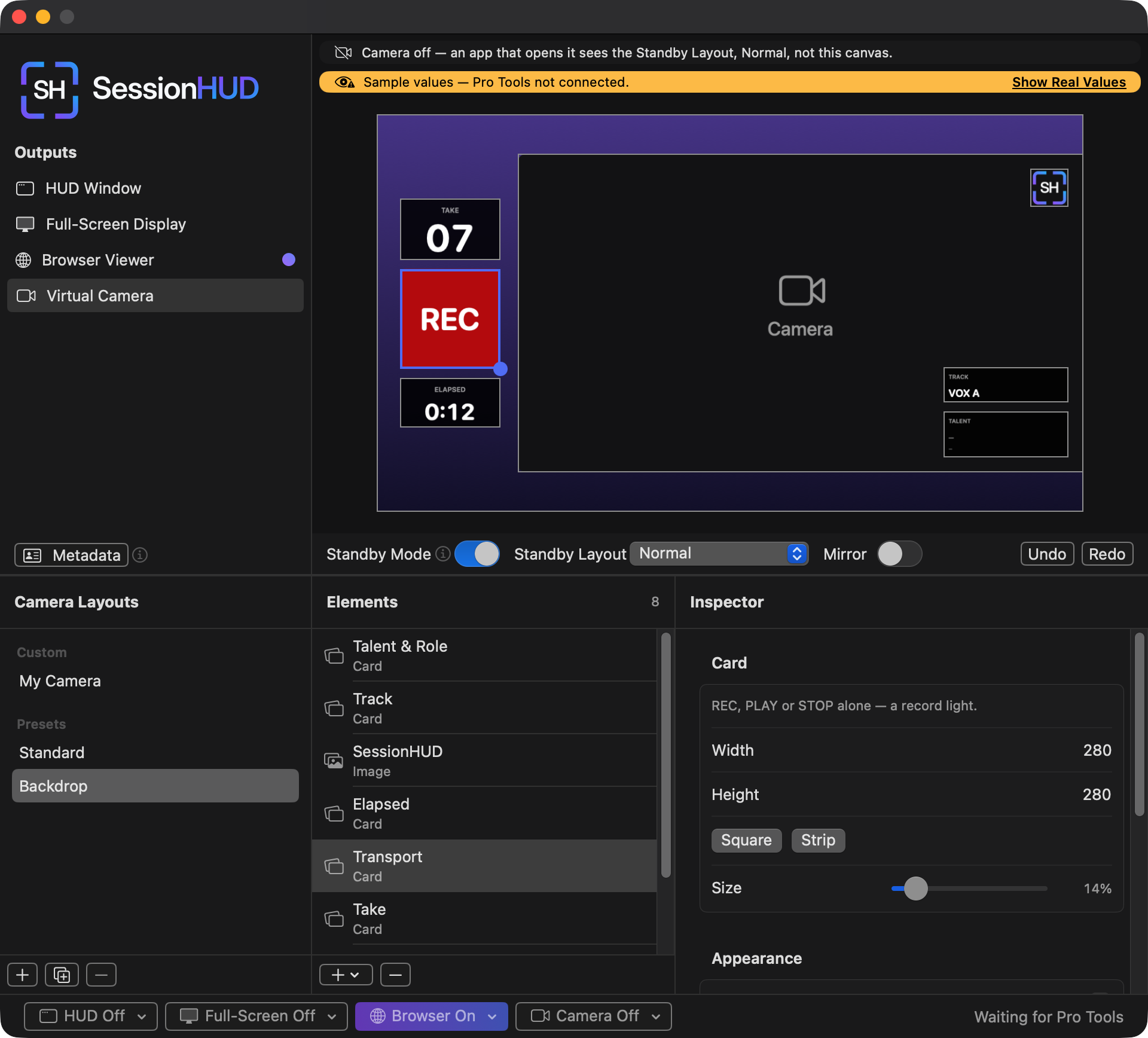
- Card — the Transport card as a square record light, selected.
- Camera — your camera’s box. With no camera in the picture the designer marks it; the mark and two cards sit over it.
- Camera Layouts — your own above the presets. Right-click for Duplicate and Restore Default.
- Elements — layers, front-most first, with the background last.
- Inspector — the selected card’s settings: here the Transport card’s shape.
Cards
A card is one piece of the session in a box of its own: Take, Take & Transport, Transport, Track, Timecode, Elapsed, Talent & Role, Client & Project, Session, Record Mode, and Text for words of your own. Talent, role, client and project are what you enter in Metadata; a card with nothing to show draws a dash rather than an empty box.
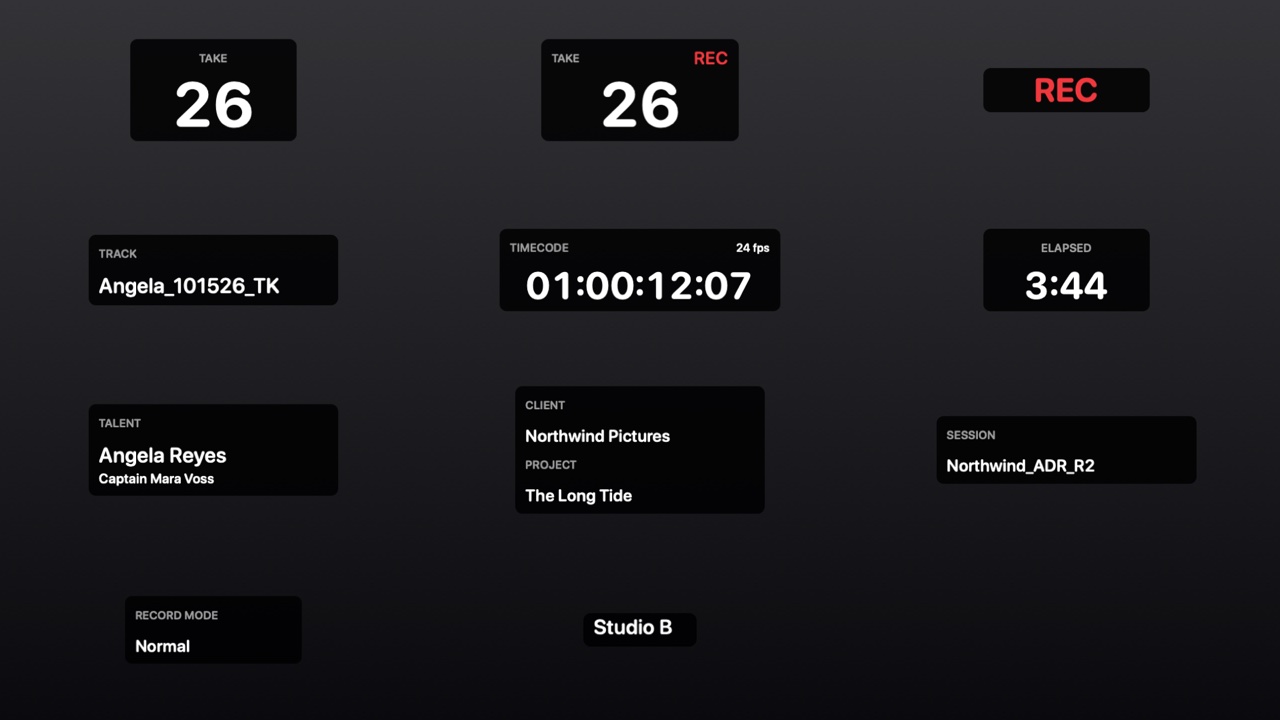
Select a card to set it up in the Inspector:
- Label — what the label says. Type CUE over TRACK for ADR, for example, or turn the label off. Typed words are shown as you type them and never become a live value.
- The card’s one optional part, where it has one: Show frame rate, Show role or Show project. The take cards have Take number: 03 or 3.
- Label color — a palette color, or your own as a hex value. Values such as the take number keep the profile’s colors, so they stay readable.
- Appearance — profile, typeface, border, text opacity, background opacity and Background follows transport, for this card alone.
The Transport card takes a shape of your own: set its Width and Height, press Square for a square record light, or Strip to go back. The word stays centered and grows with the card. A new Transport card starts with Background follows transport on.
Your camera
The Camera element is your camera in the picture. + ▸ Camera adds it filling the frame, at the back, so everything else is drawn over it. Select it to choose its Source (the same camera in every layout; also in the Camera button’s menu), and press Size and Move… to make it a box, so a backdrop and your face can share the picture, or Fill Frame to go back. The box keeps the camera’s shape and is never stretched; move it, size it, and put cards over its edge or beside it. Without a camera connected, the designer marks where it goes and the picture shows the background there. A layout with no Camera element shows no camera, and SessionHUD leaves the camera closed — its light stays off — while that layout is on.
Framing, in the Camera element’s settings, sends a close-up instead of the whole room. Raise Zoom (up to 200%) and drag the box onto the talent; Show the Whole Room goes back. At 720p a close-up stays sharp up to 150%; beyond that, or at 1080p, Framing tells you how much softer it will look. Changing the zoom on a live call can blank the room for a moment when you let go.
Frame the Talent does the framing for you: it finds the largest face in the picture and frames it head and shoulders, up to 200%. It looks once, when you press it — it does not follow the person — so adjust the box from there, or press it again after they move. It needs the camera on, and says so when it can’t find a face. Undo takes it back.
Background colors and images
Select Background and pick a Color: one of seven backdrops, each checked so text on it stays readable, or Custom for a Solid color or a Gradient of your own (top to bottom, left to right or diagonal), set with the color picker or as hex values. Or press Image… and choose Fill, Fit or Stretch; with Fit, the color fills the bands around the image. Your own colors and images aren’t checked, so give cards and HUDs on them a background.
HUD layouts on the camera
A HUD on the camera shows one of the HUD Window’s layouts, or follows whatever the HUD Window shows. You place and size it here; its fields are designed on the HUD Window, and Edit on the HUD Window… takes you there.
5. Turning the camera off
When you turn the camera off, a call that has it open never freezes. With Standby Mode on (the default) it shows your Standby Layout, one of the Full-Screen Display’s layouts, full frame and in that layout’s look; design it on the Full-Screen Display. With Standby Mode off it shows this camera layout with a Camera off card where the room was. The Camera button reads Off · N watching, with an eye, until the app lets go. If SessionHUD isn’t running, the call sees a card saying so. These settings are under the canvas, in the Camera button’s menu, and in Settings ▸ Virtual Camera.
Show elements while off (on by default, shown when Standby Mode is off) keeps the layout’s elements over the Camera off card; turn it off and the call sees the card alone, with nothing from your session on it.
The Standby caption, on by default, puts STANDBY above the Standby picture, or up to 16 characters of your own such as CAMERA OFF, set in Settings ▸ Virtual Camera.
Still wrong on screen?
If the take number is mirrored, blurred, or cut out, the video app’s own effect is still on. Re-check its background, mirror and framing settings for the SessionHUD camera. If it persists, copy the log from File ▸ Diagnostics (⌥⌘D) and send it to support@sessionhud.com.