
Features
What SessionHUD does, in the order an operator usually meets it. Settings for each control are on the Settings page.
Take number
Pro Tools does not tell other apps which take is recording. SessionHUD reads it from the name of the audio file Pro Tools creates, and every output shows that number.
A dash when it is unknown
If SessionHUD cannot tell the take, the outputs show a dash. The usual cause is the first take after Disk Allocation points a track at an empty folder, which SessionHUD cannot see until Pro Tools puts a file in it. Once that take stops, the number appears and every take after it reads normally. A track on another drive is fine. Diagnostics lists the watched folders.
Last take kept after stop
The last take stays on screen after you stop, so playing a take back does not blank its number. While recording, an unknown take still shows a dash rather than the previous number.
Arming a different track, or renaming the armed track, starts over: the take number becomes that track’s last take in the record folder, or a dash if it has none, and elapsed clears with it. Disarming every track keeps the number, so you can play takes back. Before anything is recorded, the track field names the armed track.
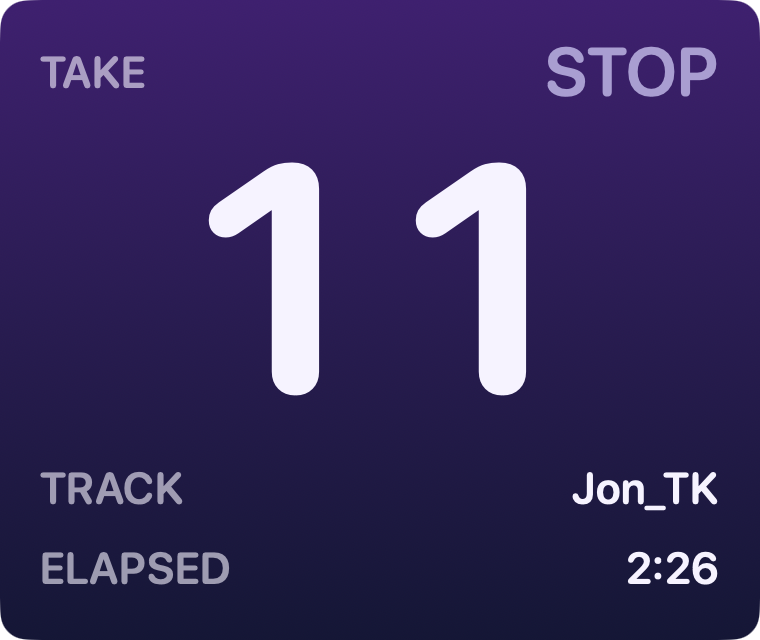
Reading the record folder
When you open a session, SessionHUD shows the highest-numbered take already in the armed track’s record folder, or a dash if there is none — never take 1. It reads the folder only while stopped. With Read the last take from the record folder off, a newly opened session or a newly armed track shows a dash until you record a take.

Play does not advance the take
QuickPunch and TrackPunch create the next take’s file as soon as you press Play. SessionHUD only shows a new number once Pro Tools is actually recording, and punching in and out on one roll keeps the same number.
A canceled take
When ⌘. (Command-period) discards a take, the transport reads DEL and the number goes back to the previous take, or to a dash if that file is gone too.
Several armed tracks
Each track numbers its own takes. With more than one armed, a Track menu appears beside the take on the bottom row of the main window, and Take number from track in the status menu. Automatic uses the first armed track, and Diagnostics marks it a best guess; pick a track to use that one.
Loop record
A loop-record pass is one take.
Elapsed time
Counts from the moment the take file appears, checked against the audio reaching disk. It freezes when you stop and restarts with the next pass.
The four outputs
All four outputs start off; turn on the ones you want with the buttons at the bottom of the main window. The API behind the browser viewer answers on this Mac from launch, so you can wire Companion or OBS once.

HUD Window
A floating panel over Pro Tools. Drag it anywhere and it stays there. Its power button’s menu has Click-through, Show only while recording and Shareable in video calls, which trades staying on top for appearing in a video app’s window picker — see Power buttons.
Full-Screen Display
A layout filling one chosen display, for a booth or client monitor. Full-Screen has its own layouts, composed to be read from across a room. The first time you turn it on, it asks which display to use. SessionHUD remembers that monitor through sleep, unplugging and restarts; if it’s missing, Full-Screen shows nothing and says why rather than using the wrong screen. Its power button’s menu picks the display and has Show only while recording.
The display never blocks your mouse: clicks go through it, and it steps behind SessionHUD’s own windows whenever you switch to SessionHUD. To turn it off fast, use the SessionHUD icon in the menu bar, which works whatever app is in front, or press ⇧⌘F (Outputs ▸ Turn Off Full-Screen Now) with SessionHUD in front.
A layout fills the display by default. Place the Block… under the canvas puts it anywhere on the display instead — a lower third, say — and Fill Full-Screen Display puts it back.
Browser Viewer
A local page a producer opens on a laptop or iPad. The page is off until you press the Browser power button; the API it shares a port with answers from launch, which is what OBS, Companion and a tally read. Every client reads the same thing — take, transport, timecode, the session fields and the talent and client names you type in Metadata.
While the Browser button is on, the page and the API are reachable from your local network; while it is off, the API answers on this Mac only. macOS may ask to allow incoming connections the first time you press it. To keep both on this Mac, set Reachable from to This Mac only in Settings ▸ Browser & API. There is no pairing code and no password: anyone on the network can open the page and read everything the API sends — take, transport, session and track names, and the talent and client you type in Metadata — whatever the layout shows.
The page and the API share one port, 7373 unless you change it. Settings ▸ Browser & API lists both addresses. There is no NDI, OSC or Stream Deck plug-in; Companion can drive a Stream Deck through the API. Routes, payloads and examples are in the API reference.
Virtual Camera
The HUD as a camera that Zoom, Teams, Meet, OBS or QuickTime can open — over the live room from a camera on the Mac, or on a backdrop of its own. Install the camera extension once with Install Camera Extension… in Settings ▸ Virtual Camera, then turn the output on. The camera has its own designer and camera layouts, and a Standby picture for any app that has it open while it is off. Setup, layouts and the settings each video app needs are in the Virtual camera guide.
Sample values
While Pro Tools is not connected, the designer shows a sample recording pass; until Pro Tools first connects, so do the HUD Window, Full-Screen and camera, so you can judge a layout at real size. The browser page and API never do. After Pro Tools has connected once, outputs show only real values — a disconnect dims the last values (or shows dashes, if you chose Show Dashes). Turn this off with Show sample values until Pro Tools connects in General ▸ Reading an output.
Appearance
Color profile, typeface, border and opacity are saved with each layout, so switching layouts switches the look with them, and an exported layout looks the same in the next room. Select Appearance at the top of the Elements list, or click an empty part of the canvas or press Escape, and the Inspector shows the layout’s look. Locking a layout doesn’t lock its look, so you can recolor a preset without unlocking it. The HUD Window’s size and Grow to fit long text stay with the window, whichever layout it shows, under their own heading. On the Virtual Camera, each HUD uses its layout’s look unless you give it one of its own in the Inspector. Appearance works during the evaluation too.
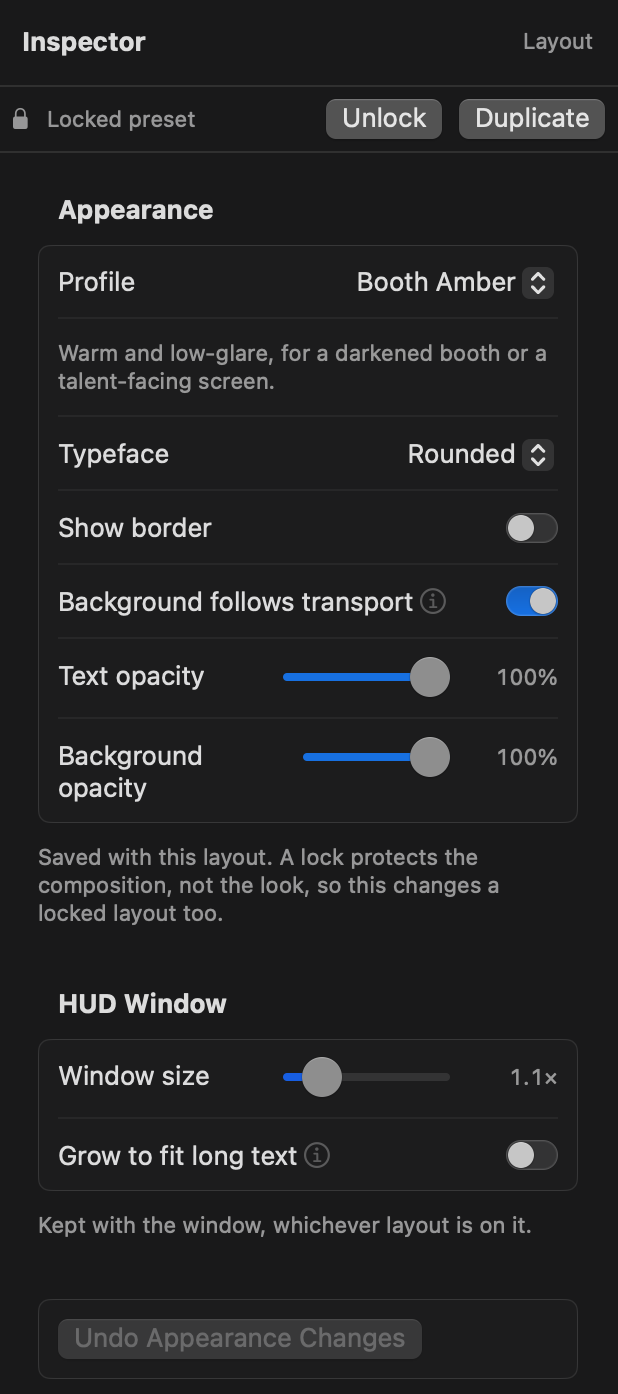
- Profile — a set of colors chosen to stay readable.
- Typeface — one face for the whole layout.
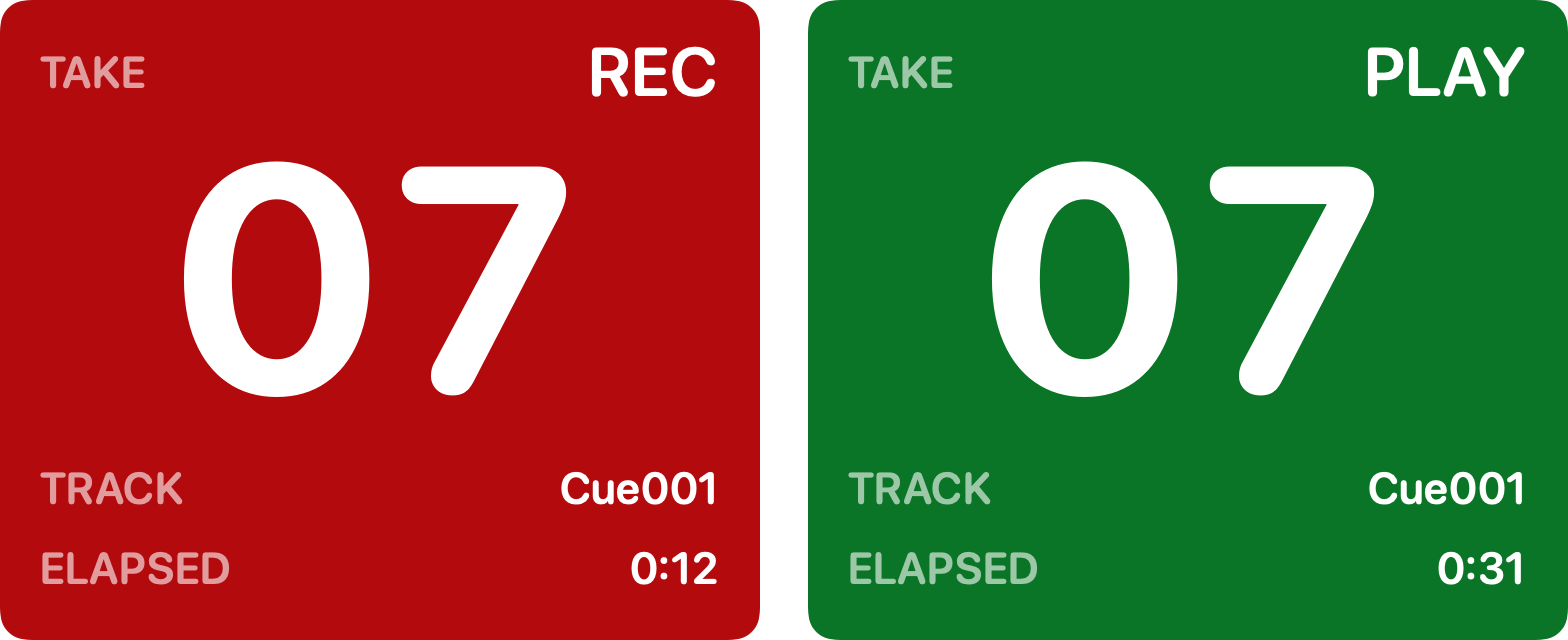
- Background follows transport — red while recording, green while playing. Off by default. On the camera it is per HUD, in the Inspector. Choose the shades in Settings ▸ General.
- Opacity — text and background (Browser: text only), both 100% to begin with. Text opacity stops where the text would stop being readable.
- HUD Window — how large the window draws, and whether it grows to fit long text (off by default): a long track or talent name widens the window instead of being cut off.
- Show border — a thin edge in the profile’s colors, on the HUD Window and on each HUD on the camera.
Included presets
The HUD window, the browser viewer and the full-screen display each ship with the presets below; Full-Screen has every one except Banner. Click one to put it on that output. Hover a row in the Layouts list for a one-line summary.
- Simple — a centered counter with take and transport.
- Normal — a take card with larger transport, track and elapsed.
- Detailed — a recording slate adding timecode, file and session format.
- Timecode — a wide post-production clock with frame rate and session context.
- Banner — a single line in a wide, shallow strip for the bottom of a picture. Not offered on Full-Screen, where Place the Block… puts any layout along the bottom of the display.
- Timer — elapsed take time as the headline, with take, track and transport.
- Talent — a talent card from the talent, role and client you type in Metadata. Those three rows are optional; with nothing typed it reads as a take card.
- Lamp — every output except the Virtual Camera. A large take number with a lamp in the corner — a dot while recording, a triangle while playing, a square when stopped, in the colors of the layout’s profile — and elapsed time beside it. It ships with Background follows transport on; recolor it in the Inspector.
- Clock & Take — every output except the Virtual Camera. The take with the time of day beside it, the transport above, and the track and date underneath: which take, and what time it is. It uses the 12-hour time; duplicate it and swap in another Date & Time value for 24-hour.
Locking and restoring
Any layout can be locked so it isn’t changed by accident: right-click it and choose Lock, or Unlock to Edit to change it again. A locked layout shows a lock and can’t be edited or renamed, and your own can’t be deleted while locked. Presets start locked; your own layouts and copies start unlocked. Unlock a preset to edit it in place — it keeps its name — or use Duplicate to keep the original and edit a copy.
Once you have changed a preset, right-click ▸ Restore Default puts back what shipped without changing its lock, and ⌘Z undoes that. Delete works on a preset too, locked or not: it leaves that output’s list, with any changes you made to it. To get a deleted preset back, choose Restore Preset in the import/export menu under the list; it returns as shipped.
Delete asks no question; ⌘Z brings the layout back. An output showing a deleted preset moves to the first layout left in its list; one showing your own deleted layout goes to Normal.
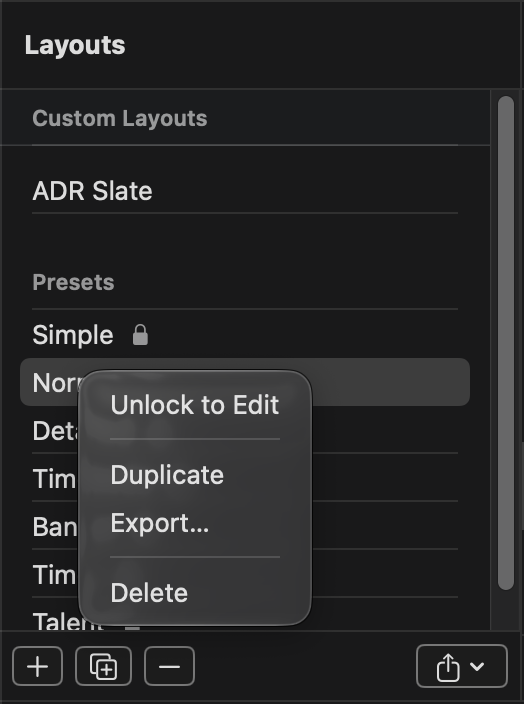
- Lock
- Right-click menu — Restore Default joins it once a preset has been changed.
Changing layouts on a live output
Clicking a row puts that layout on the output straight away. While the output is on, moving through the list with the arrow keys only previews: a miniature opens above the highlighted row, the row on screen is marked Showing, and nothing reaches the screen until you press Space or the row’s Use button. Esc goes back to the layout that is showing.
Each output row at the top of the column carries a small light that matches its power button.
Layout designer license required
During the evaluation the designer is read-only apart from Appearance — you can look at presets, pick them, recolor them and export them. Your own layouts and changed presets stay hidden — not deleted — until you activate a serial.
A license unlocks editing: unlock or duplicate a preset, or start a new layout, then drag elements, change their text, set when they show, their color and opacity, and add a studio logo. Layouts are files you can export and import between rooms, and each one belongs to one output.
The Elements list is the layer order, front-most first; drag to reorder. Clicking the same spot on the canvas again selects the element underneath.
Building a layout
- + under the Elements list adds a text element; − or Delete removes the selected one.
- Size runs from 8 to 400 pt, up to what fits in the frame, and each element has its own Opacity.
- Keep fixed as text changes — Left edge, Center or Right edge: the side that stays put when a value gets longer.
- Drag an element on the canvas to move it. It snaps to the frame’s edges and center and to other elements; hold ⌥ to place it freely. Arrow keys move the selected element one grid step, or one point with ⌥.
- Grid under the canvas — 4, 8, 16 or 32 pt — sets the arrow-key step and the lines on the canvas.
- W and H set the layout’s frame; Fit to Content shrinks it to the elements without moving them.
- Undo and Redo sit under the canvas (⌘Z, ⇧⌘Z), beside the button that opens the canvas in a larger window.
- Right-click an element in the Elements list for Bring to Front, Bring Forward, Send Backward, Send to Back and Remove.
- File ▸ New Layout (⌘N) and Duplicate Layout (⌘D). Rename a layout from its right-click menu or File ▸ Rename Layout.
Text and live values
Type your own words and use Insert Data to drop in live values — take, transport, timecode, the date and time, session format, armed tracks and your Metadata fields. The menu groups them by kind; point at a group to see its values, each with its current reading.
With Advanced template on, the same values appear as codes you can type:
- Take —
{take}(03),{takeNumber}(3),{track}the recording track,{takeFile}the take file name - Transport —
{transport}status,{transportSymbol}the same as a square, triangle or dot,{recordMode}record mode - Timecode —
{timecode},{elapsed}elapsed time,{sessionStart}session start time,{timelineIn}selection start - Date & Time — the time of day on this Mac:
{time24}(14:32),{time24Seconds}(14:32:07),{time12}(2:32 PM),{time12Seconds}(2:32:07 PM); and the date:{date}(Oct 20, 2026),{dateShort}(10/20/2026),{dateLong}(Tuesday, October 20, 2026),{dateISO}(2026-10-20),{weekday}(Tuesday). The four times keep the hour style you pick whatever your Mac is set to; the dates follow your Mac’s region, so the day and month come in the order you’re used to. These work with Pro Tools closed. - Session —
{session}name,{sampleRate},{bitDepth},{audioFormat},{timecodeRate}timecode frame rate - Tracks —
{armed}armed track names,{armedCount}how many are armed - Metadata —
{talent},{role},{client},{project},{engineer},{note}, and{countdown}with{countdownEnd}, which show only while a countdown is running (below)
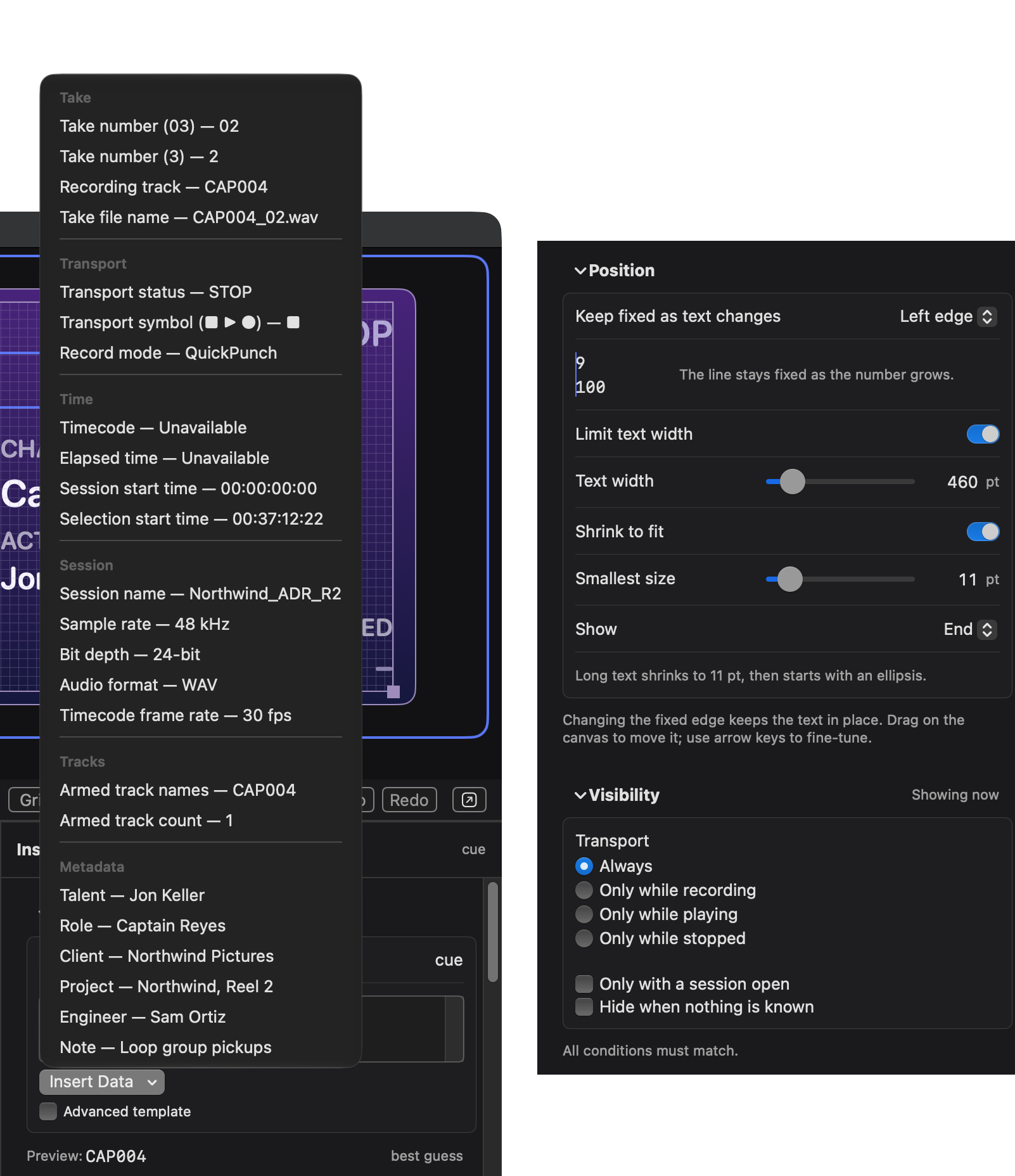
- Insert Data — adds a live value to the text as a badge. Each value shows what it reads right now.
- Advanced template — shows the same text with
{placeholders}you can type. - Long text — Limit text width sets a maximum width; Shrink to fit, Smallest size and Show decide what happens to text wider than it. See Long text.
- Transport — Always, or only while recording, playing (recording counts as playing) or stopped.
- Conditions — Only with a session open; Hide when nothing is known. Every ticked condition must be true.
Color and images
Text uses the layout’s profile color unless you pick another in Text color, or choose Custom color… and type a hex color.
Add a studio logo with the image button under the Elements list (license required) — PNG, JPEG, SVG and other common formats. It is saved inside the layout, so it travels with an export.
Long text
Turn on Limit text width to give text a maximum width. Text wider than that shrinks first if Shrink to fit is on, down to Smallest size (Option-click to reset: 11 pt, or half the size for text 48 pt and larger), then is cut with an ellipsis. Show picks which part survives: Beginning, or End — track and file names keep their end by default, so a take file’s number stays visible. Every preset shrinks to 11 pt.
Metadata
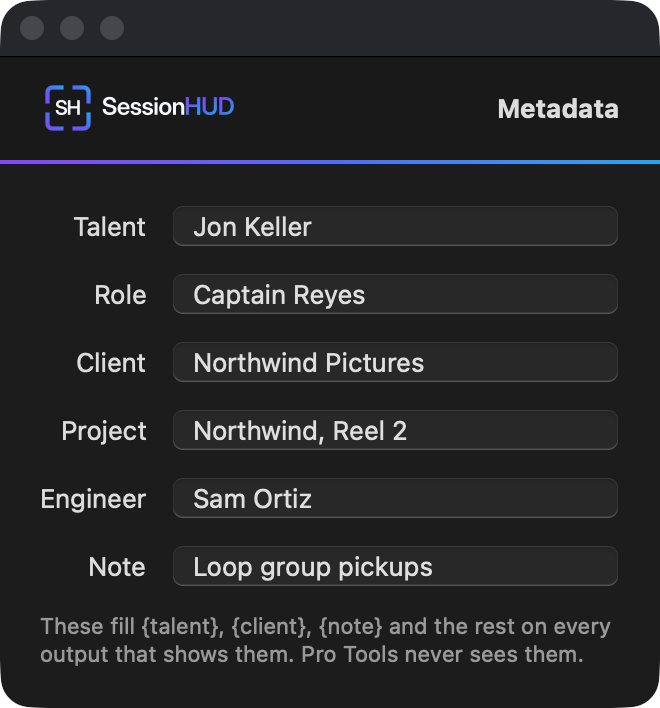
Talent, role, client, project, engineer and note are typed by you in the Metadata window, opened from the Metadata button under the list of outputs in the main window or from File ▸ Metadata…. They are available whether or not Pro Tools is connected, and they are what the Talent preset reads. SessionHUD never invents them. Clear empties every field at once between sessions; Edit ▸ Undo brings them back.
Countdown, under the fields, runs to the end of a break or the
session. Choose Until a time and set when it ends, or For a
length and set the hours and minutes, then press Start. Choosing a
time or a length doesn’t start anything. {countdown} shows the time left,
such as 12:05 or 1:02:03, and {countdownEnd} shows when it ends; the card shows
both while it runs. Hide takes it off every output and keeps it counting, and
Show puts it back. Stop ends it, and
Restart runs the same length again from now. A layout element that shows the
countdown appears only while one is running and not hidden, label and all. A time earlier than
now means tomorrow; changing the time or length of a running countdown changes it straight
away; and once it reaches 0:00 it stays there until you stop or restart it.
Clear stops it and remembers how you set it.
MTC timecode
In Pro Tools, open Setup ▸ Peripherals, choose the Synchronization tab, and set MTC Generator Port to SessionHUD MTC, listed under Predefined. Then press play. SessionHUD must be running for the port to be listed.

- Synchronization
- MTC Generator Port — SessionHUD MTC, under Predefined. Leave MTC Reader Port as it is.
Without MTC, during a record pass the HUD shows a position worked out from where the pass started and how long it has run; Diagnostics calls that a best guess. When frames stop arriving, the last known timecode dims rather than looking live. SessionHUD never generates or echoes timecode.