
Getting started
SessionHUD sits beside Pro Tools and shows the take number that is recording right now. This page gets you from download to a number on the desk.
What you need
- macOS 15 or later
- Pro Tools 2023.9 or later
- SessionHUD downloaded from sessionhud.com
- A network connection for a moment on first launch, to start the 14-day evaluation
Install
- Download SessionHUD from sessionhud.com/download. If you have bought a license, the same file is linked from your purchase email and your account page.
- Move SessionHUD to Applications and open it. The first time, macOS asks whether you want to open an app downloaded from the internet — choose Open. If it says instead that it can’t check the app for malicious software, or that the app is damaged, that copy is not ours: download it again from sessionhud.com.
That is the whole install. Nothing goes into Pro Tools: no plug-in, no session template, nothing inside your sessions.
Your 14-day evaluation
The evaluation starts the first time you open SessionHUD, which needs the Mac to be online for a moment. If it can’t connect, the main window says so and offers Try again.
- Every output works, with the built-in presets.
- The layout designer opens so you can look around; editing needs a license.
- The days left are shown above the canvas and in the status menu.
When the evaluation ends, the outputs stop until you add a license. If you are recording at that moment, everything stays up until you stop. Your layouts and settings are kept.
A license keeps the outputs running and unlocks the layout designer and your own logo. If you already have one, choose SessionHUD ▸ License… and type in its serial number. Buying a license, moving it to a new Mac and recovering a serial number are on Support.
Connect to Pro Tools
Leave Pro Tools running with a session open. SessionHUD connects on this Mac only, and there is no setting to change in Pro Tools. If it cannot see Pro Tools, confirm Pro Tools is running with the session open; Diagnostics lists the connection and says why it is up or down.
The take number comes from the folders Pro Tools records into, which SessionHUD reads. If your sessions are in Documents, on the Desktop or on an external drive, macOS asks once whether SessionHUD may read that folder. Allow it, or the take number stays a dash.
If you chose Don’t Allow, open System Settings ▸ Privacy & Security ▸ Files & Folders, find SessionHUD and turn on the location your sessions are in — Documents Folder, Desktop Folder, Removable Volumes for an external drive, or Network Volumes for a server — then quit and reopen SessionHUD.
Your first take
- Open SessionHUD. The main window is the output workspace: one canvas for the output you have selected. Settings is in the SessionHUD menu (⌘,).
- Every output starts off, so nothing appears on screen until you ask for it. Press the HUD button at the bottom of the main window to put a floating panel over Pro Tools. It reads HUD On or HUD Off and turns it on and off; so do ⌃⌘1 and HUD Window in the status menu.
- Arm a track and record. SessionHUD watches the file Pro Tools creates and puts that take number on the panel.

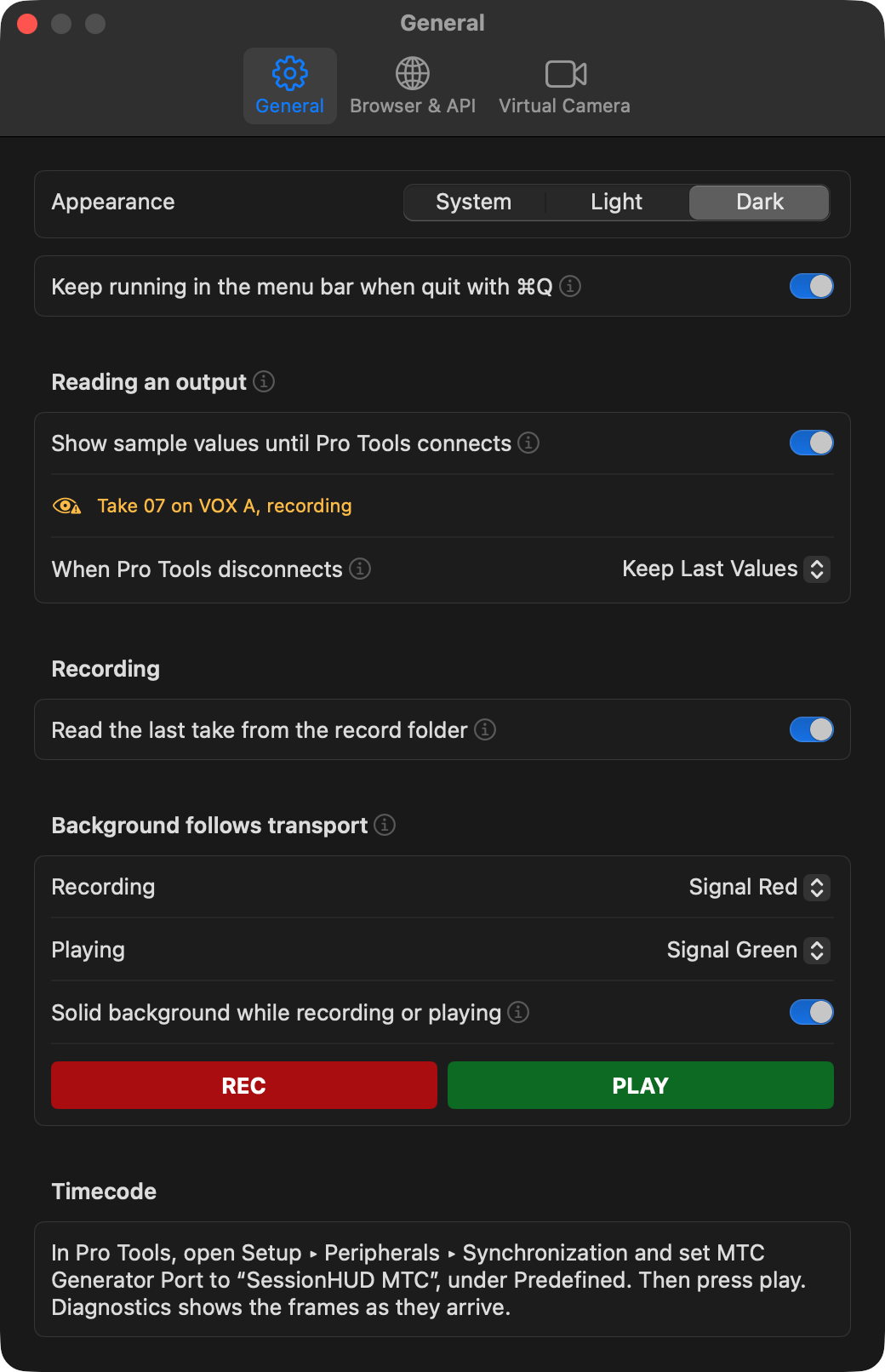
Until Pro Tools first connects, the HUD window, the full-screen display and the virtual camera show sample values, so you can judge a layout at real size. The browser viewer never does. Turn it off in Settings ▸ General with Show sample values until Pro Tools connects.
Optional setup
The other three outputs each have their own power button. A few things take a moment of setup first:
- Running timecode — in Pro Tools, open Setup ▸ Peripherals ▸ Synchronization and set MTC Generator Port to SessionHUD MTC (under Predefined), then press play. See Features ▸ MTC timecode.
- The browser viewer on other devices — turn on the Browser button, then copy the Page link from Settings ▸ Browser & API ▸ Links and open it on any phone, tablet or computer on the same network. If macOS asks whether SessionHUD may accept incoming connections, choose Allow. See Features ▸ Browser Viewer.
- The virtual camera — install the camera extension once from Settings ▸ Virtual Camera. See the Virtual camera guide.
The main window
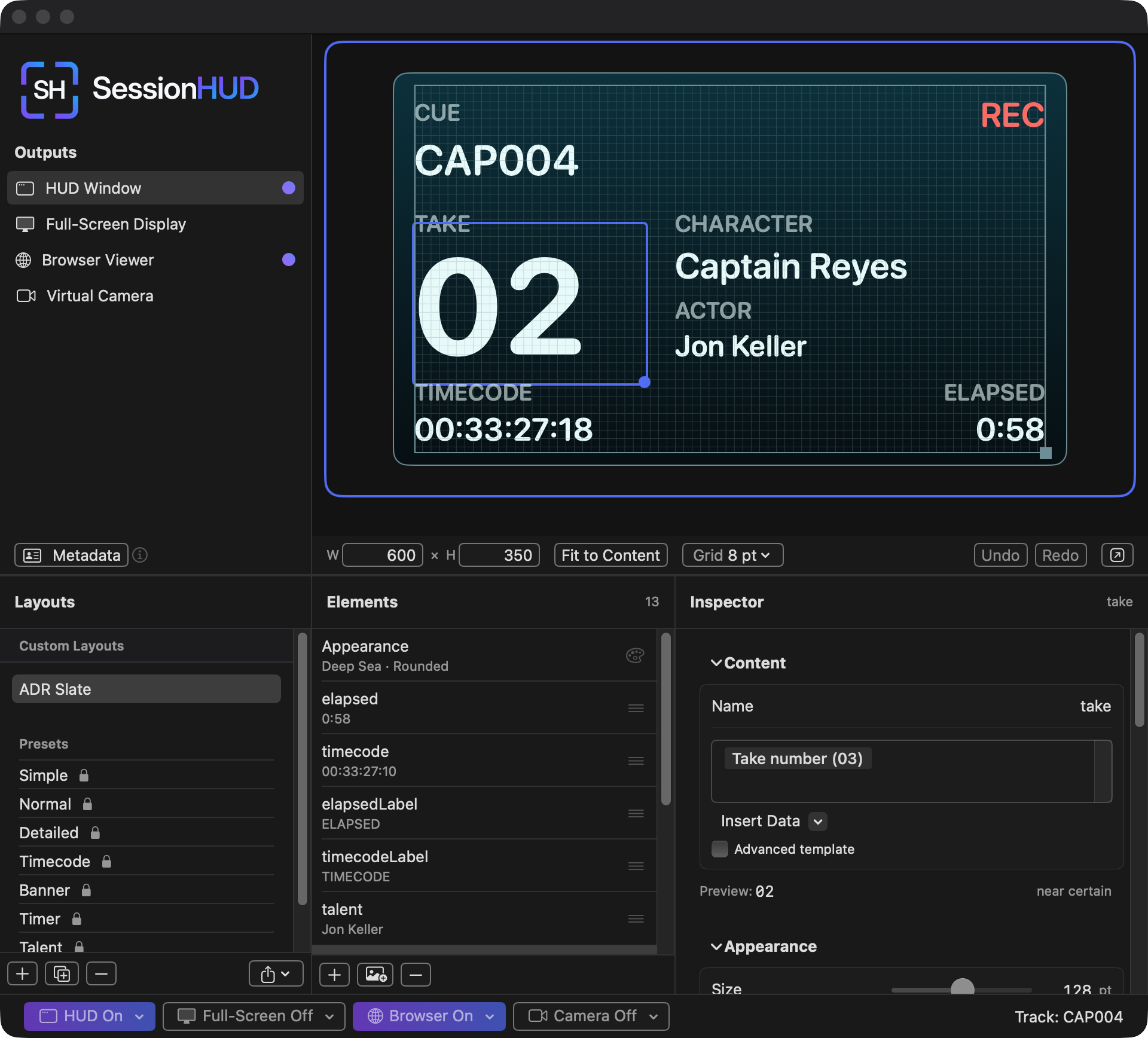
- Outputs — pick the output you are designing for. The dot beside each says what it is doing: purple-to-blue means it is on, in the colors of its lit power button; half-filled amber means it is on but waiting, for example set to show only while recording; a red ! means it is not running; an eye means the camera is off but an app is still watching it; an amber circular arrow means SessionHUD has to reopen before it can use the camera. No dot means off.
- Canvas — the selected output’s layout, drawn the way that output draws it. The strip under it sets the layout’s size (W × H) and has Fit to Content, the grid, Undo and Redo, and a button that opens the canvas in a larger window.
- Layouts — your own layouts, then the built-in presets.
- Elements — Appearance first (the layout’s color profile, typeface, border and background), then everything in the layout, front to back.
- Inspector — settings for whatever is selected in Elements: an element’s text and look or, with Appearance selected, the whole layout’s look.
- Status — the armed track SessionHUD counts takes on, or whether Pro Tools is connected. While recording, hover it for the take and how sure SessionHUD is of it. With more than one track armed, it becomes the Track menu, which picks the one it counts.
- Power — one button per output; the arrow beside each, or a right-click, opens its menu.
- Metadata — names and notes you type for this session, such as talent and client. It sits at the foot of the Outputs column.
What a dash means
Where SessionHUD does not know a value, it draws a dash, and a value that has stopped updating is dimmed. SessionHUD never fills in a value it can’t back up. When it has to choose, for example which of several armed tracks the take number comes from, its best guess draws like any other value, and File ▸ Diagnostics… names it as a guess and says why.
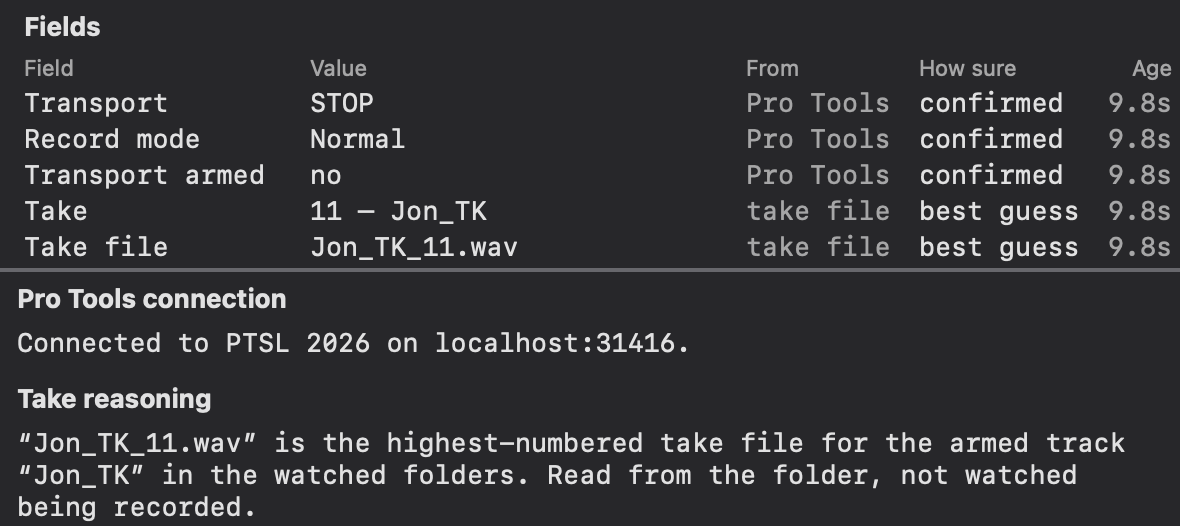
- How sure — confirmed was seen directly; near certain was seen with one safe assumption, such as a take file that is still growing meaning it is still recording; best guess is SessionHUD’s choice where more than one answer fit.
- Take reasoning — why the take on screen is that take.
Where the windows are
- Main window — the four outputs, the canvas, the Layouts, Elements and Inspector panels, and the power buttons with the session status beside them (see The main window). Open it with Open SessionHUD in the status menu, or by clicking SessionHUD in the Dock.
- Settings — SessionHUD ▸ Settings…, or ⌘,. Three tabs: General (the look of SessionHUD’s own windows, keeping it running in the menu bar after ⌘Q, sample values, what outputs show when Pro Tools disconnects, reading the last take from the record folder, the red and green Background follows transport uses, the timecode setup steps, and updates); Browser & API (who can reach the page and the API, the port, and both addresses to copy); and Virtual Camera (installing the camera extension, the picture size and Standby). Hover a setting for what it does, or click the ⓘ beside it where there is one. See Settings.
- License — SessionHUD ▸ License…, a window of its own.
- Metadata — the button at the foot of the Outputs column, or File ▸ Metadata…: talent, client and notes that layouts can show. See Features ▸ Metadata.
- Diagnostics — File ▸ Diagnostics…, or ⌥⌘D. The connection, the watched folders, and why the current take is the current take. When you write to support, press Copy beside Log and paste it into your email; names and file paths stay out unless you turn on Include content.
- Status menu — the SessionHUD icon in the menu bar, for what you do without stopping: the status line (and the evaluation’s days left); with more than one track armed, Take number from track, which picks the one SessionHUD counts; every output’s power, ticked while it is on; the HUD window’s layout, click-through and sharing in video calls; Open SessionHUD, Show Dock Icon and Quit SessionHUD. It does not open Settings or Diagnostics.
- Dock menu — right-click the Dock icon for the same status line, every output’s power and Open SessionHUD. Useful if macOS hides the menu-bar icon.
Settings, License and Diagnostics are in the app’s own menus, which are there only while the Dock icon is showing. If you turned it off, Show Dock Icon in the status menu brings them back.
Uninstalling
- If you have a license, choose SessionHUD ▸ License… and press Release This Mac…, so the seat is free for another Mac.
- If you installed the camera extension, open File ▸ Diagnostics… and press Remove Camera Extension….
- Quit SessionHUD, then drag it from Applications to the Trash.
Nothing was added to Pro Tools or your sessions, so there is nothing to clean up there.
Your settings and layouts stay in ~/Library/Application Support/SessionHUD;
delete that folder too for a clean removal.