Everything SessionHUD puts on screen, and why.
One app beside Pro Tools, four places to show the session: your client’s video call, the booth monitor, the producer’s tablet and your own desk. Here is what each one does in a working session.
Virtual camera
The take number, in your client’s video call
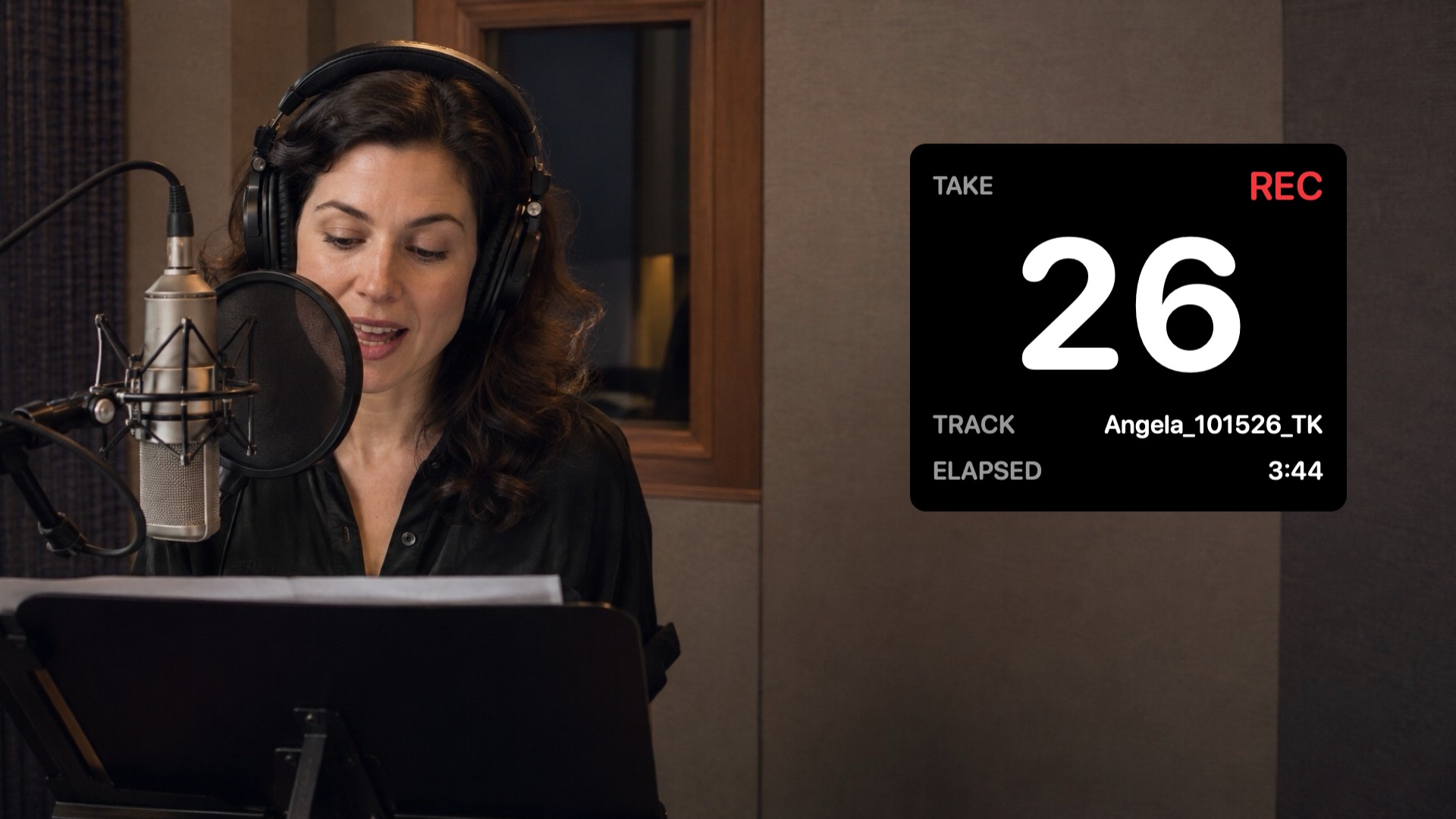
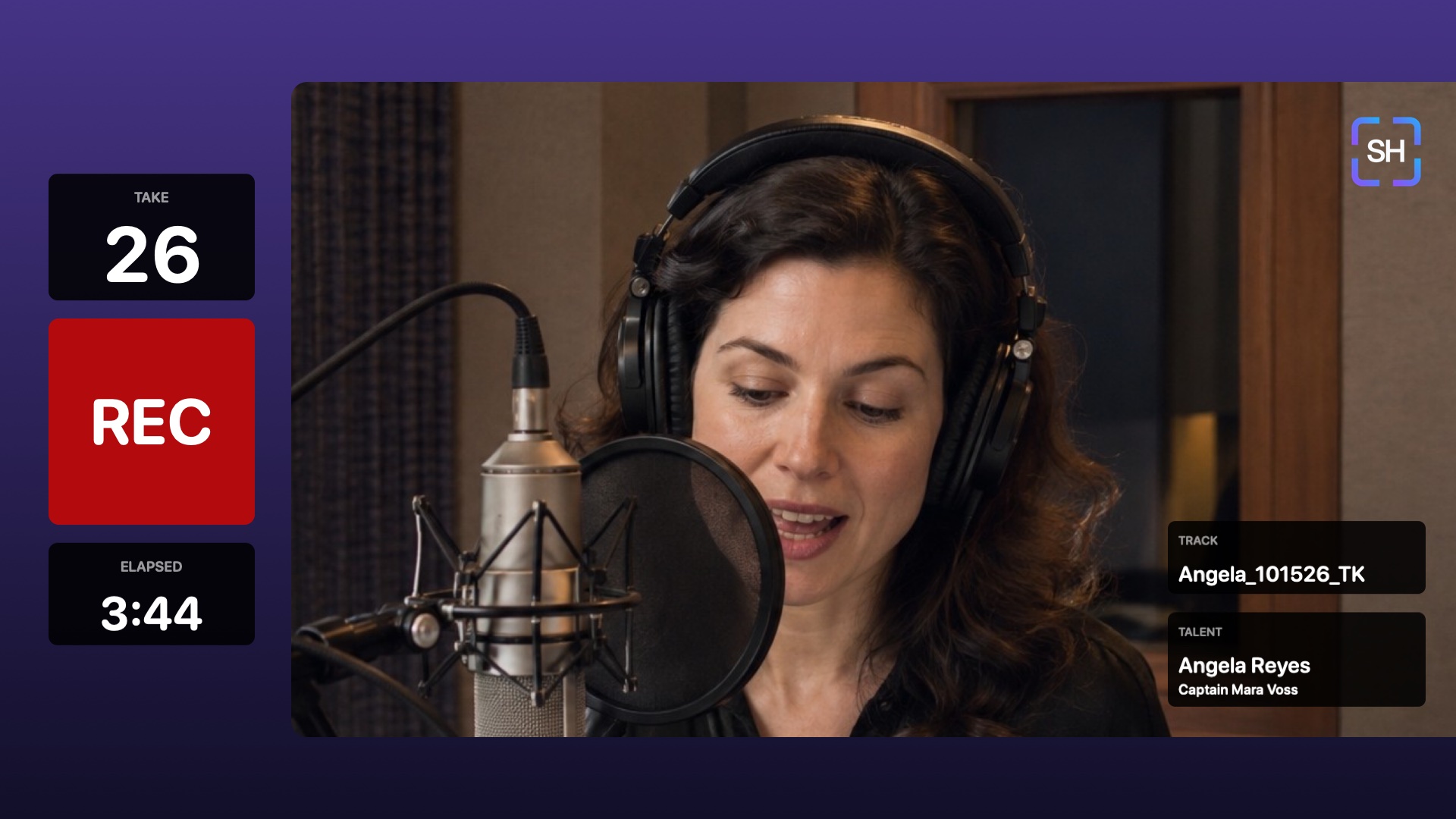
SessionHUD adds a camera to your Mac. Choose it in Zoom, Teams, Meet or OBS, and everyone on the call sees the take, the transport and the elapsed time in your video, over your room camera or on a backdrop of its own. Nobody on the other end installs anything, and nobody has to ask which take that was.
-
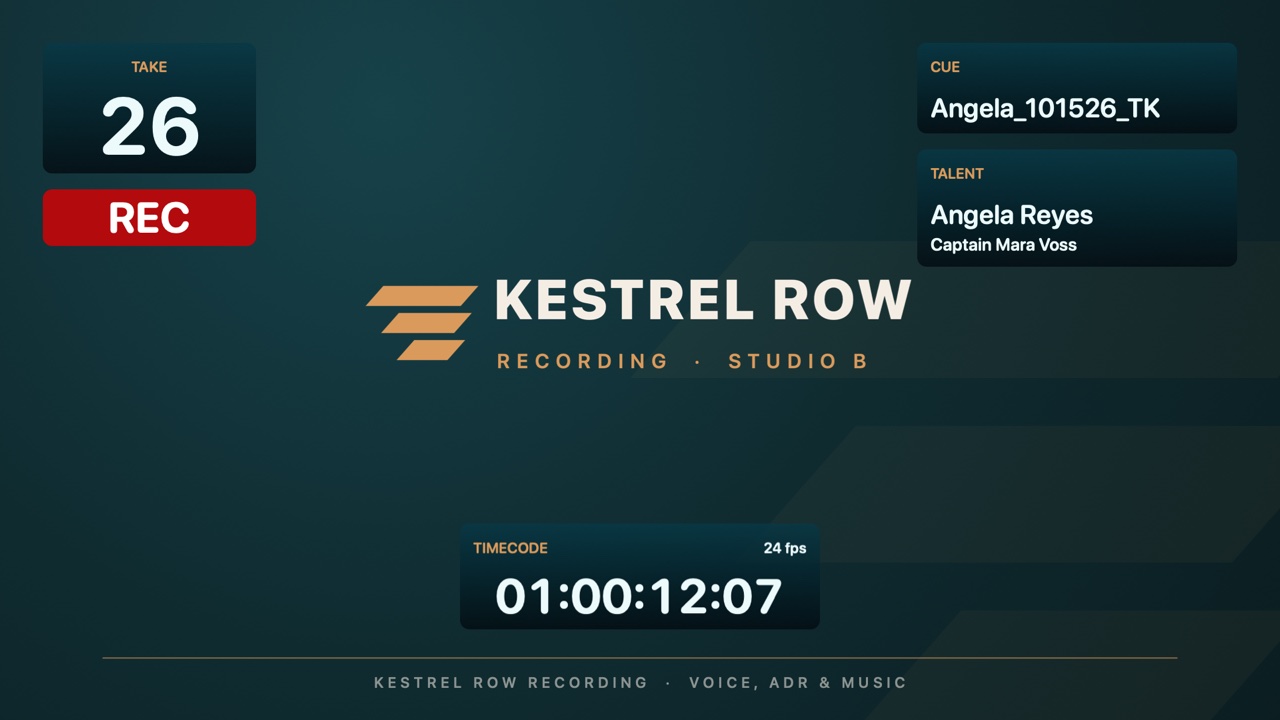
Your studio’s look Your logo, a background image, color or gradient of your own, and labels in your words, like CUE in place of TRACK for ADR. Kestrel Row is an example studio. Not available during the evaluation.
-
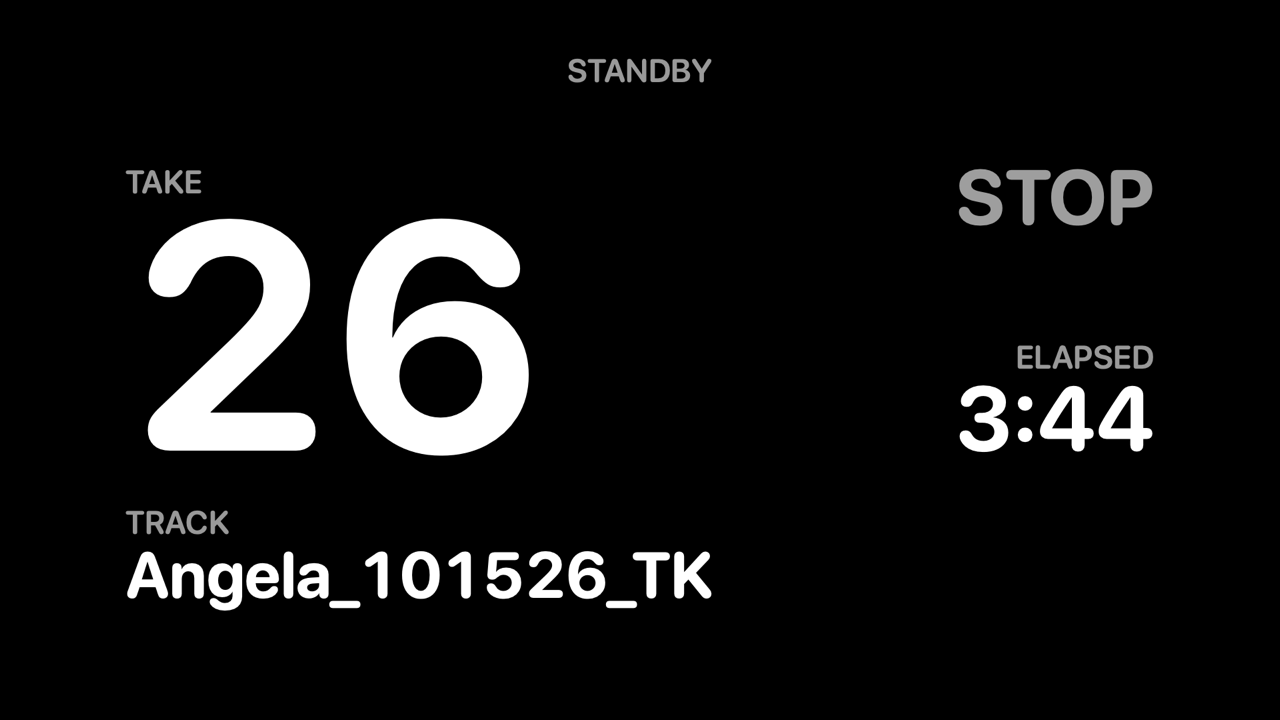
Standby, not a frozen frame Turn the camera off and the call keeps the take on screen under a caption you choose, such as STANDBY or BACK IN 5.
-
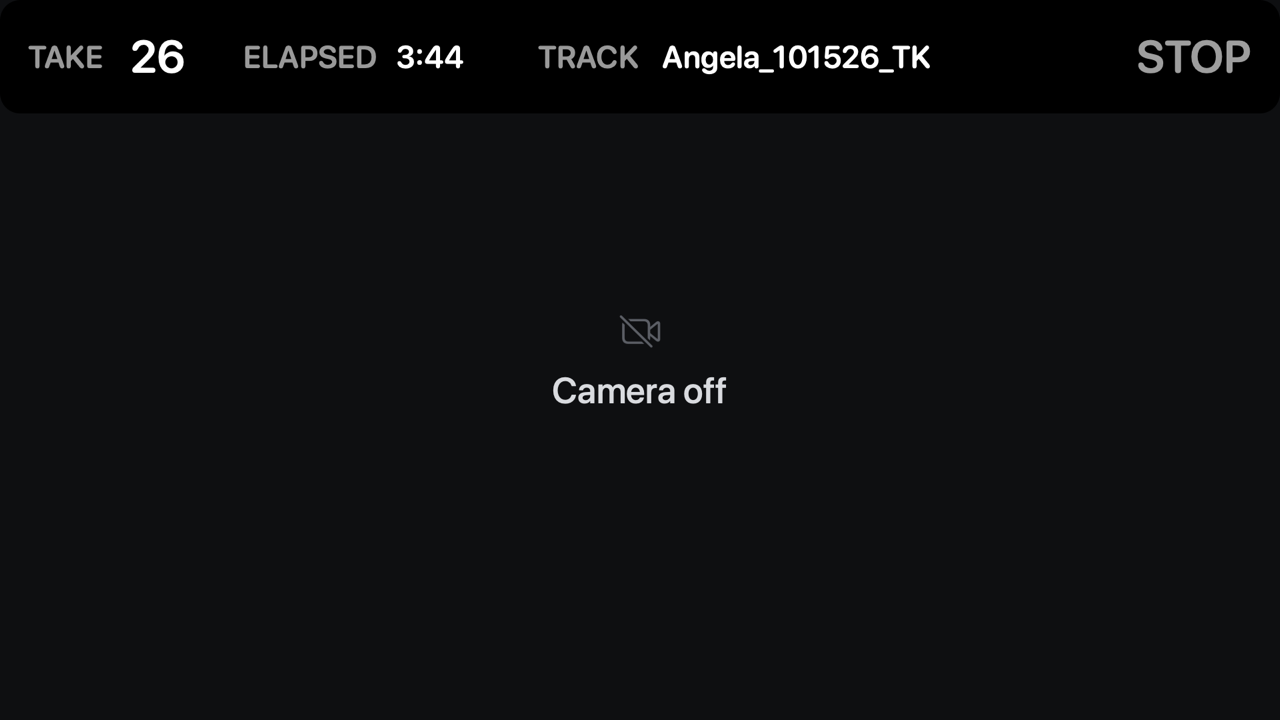
Or your layout, camera off With Standby off, the call keeps your camera layout with a Camera off card where the room was, or the card alone if you’d rather. If SessionHUD isn’t running, the card says that instead.
- Works where your clients already are. Zoom, Microsoft Teams, Google Meet, OBS, QuickTime and any other Mac app that can choose a camera. 720p or 1080p at 30 frames a second.
- The text stays sharp. SessionHUD draws the take into the frame itself. Mirror your camera and only the room flips. The take never reads backwards.
- Your own camera layouts. Two layouts come ready to use. Change them or build your own from ready-made cards for the take, the transport, the timecode, the talent and more, up to eight at once, each with its own colors, background and border. Add your logo, put your camera in a box, and choose what sits behind it. Not available during the evaluation.
The take number
The number Pro Tools doesn’t show you
Pro Tools doesn’t tell other apps which take is recording. SessionHUD works it out from the files Pro Tools writes and puts the same number on every screen as soon as recording starts.
-
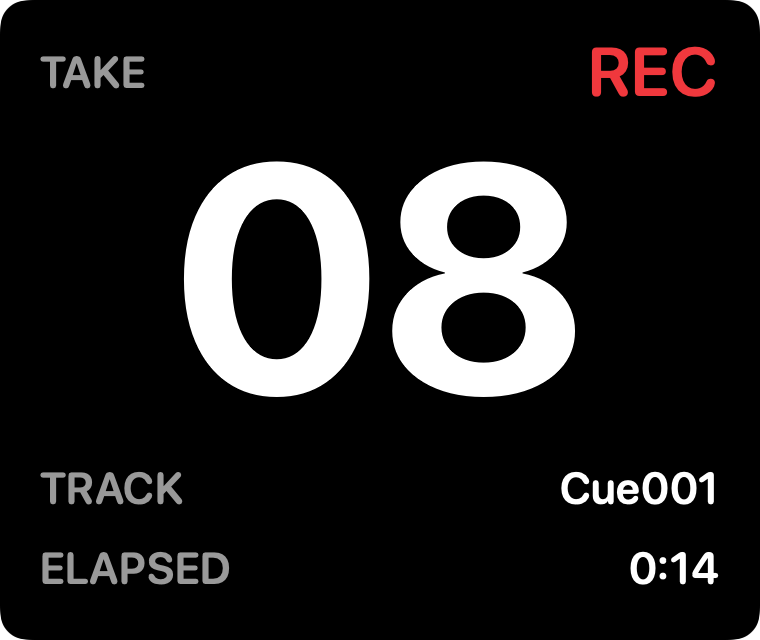
Recording Take 08, timed from its first second.
-
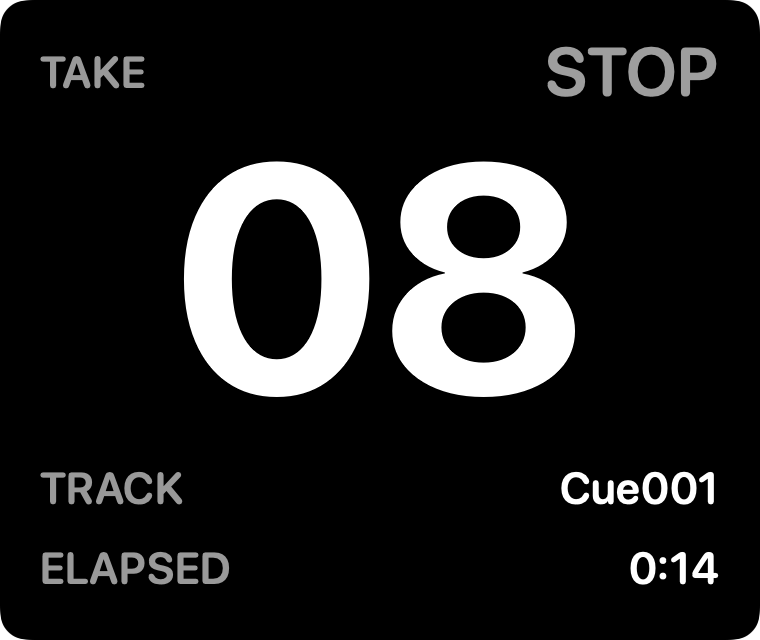
Stopped The take stays on screen while you play it back.
-
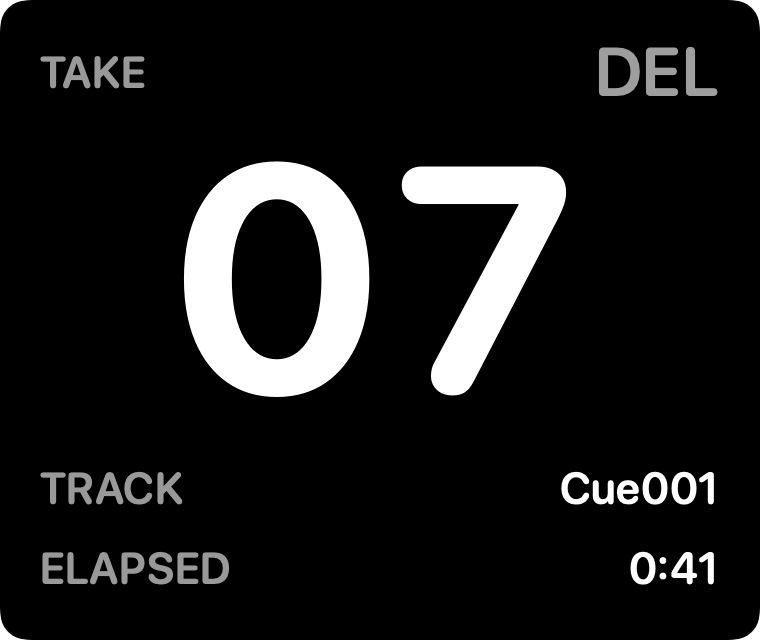
Canceled ⌘. discards take 08; the panel reads DEL and goes back to 07.
- A dash, never a made-up number. If SessionHUD can’t tell which take is recording, every screen shows a dash until it can.
- Play doesn’t advance it. QuickPunch and TrackPunch create the next file the moment you press Play. SessionHUD waits until Pro Tools is really recording, and a punch in and out on one roll keeps one number.
- Picks up where you left off. Arm a track and every screen shows the last take already in its folder, so a cue with 22 takes doesn’t start the day at take 1.
- Elapsed time, per take. Every take is timed from zero, so everyone can see how long this one has been rolling, not just where it sits in the session.
- Loop record and several armed tracks. A loop pass is one take. With more than one track armed, each keeps its own numbering and you choose which one the screens follow.
- Timecode, too. Point Pro Tools’ MTC generator at the SessionHUD MTC port and any layout can show timecode and frame rate.
Booth display
A screen talent can read from the microphone
Put the session on any display connected to your Mac, such as a monitor in the booth or on the client couch, with layouts made to be read across a room.
- The right screen, every time. SessionHUD remembers the monitor through sleep, a cable pull and a reboot. If it is missing, nothing is shown rather than the take landing on the wrong screen.
- Never in your way. Clicks pass straight through it, it steps behind SessionHUD’s own windows whenever you switch to SessionHUD, and the SessionHUD icon in the menu bar turns it off from anywhere.
- Only while recording, if you like. The display can stay dark until the transport goes into record.
Browser viewer and API
A record light on every iPad in the building
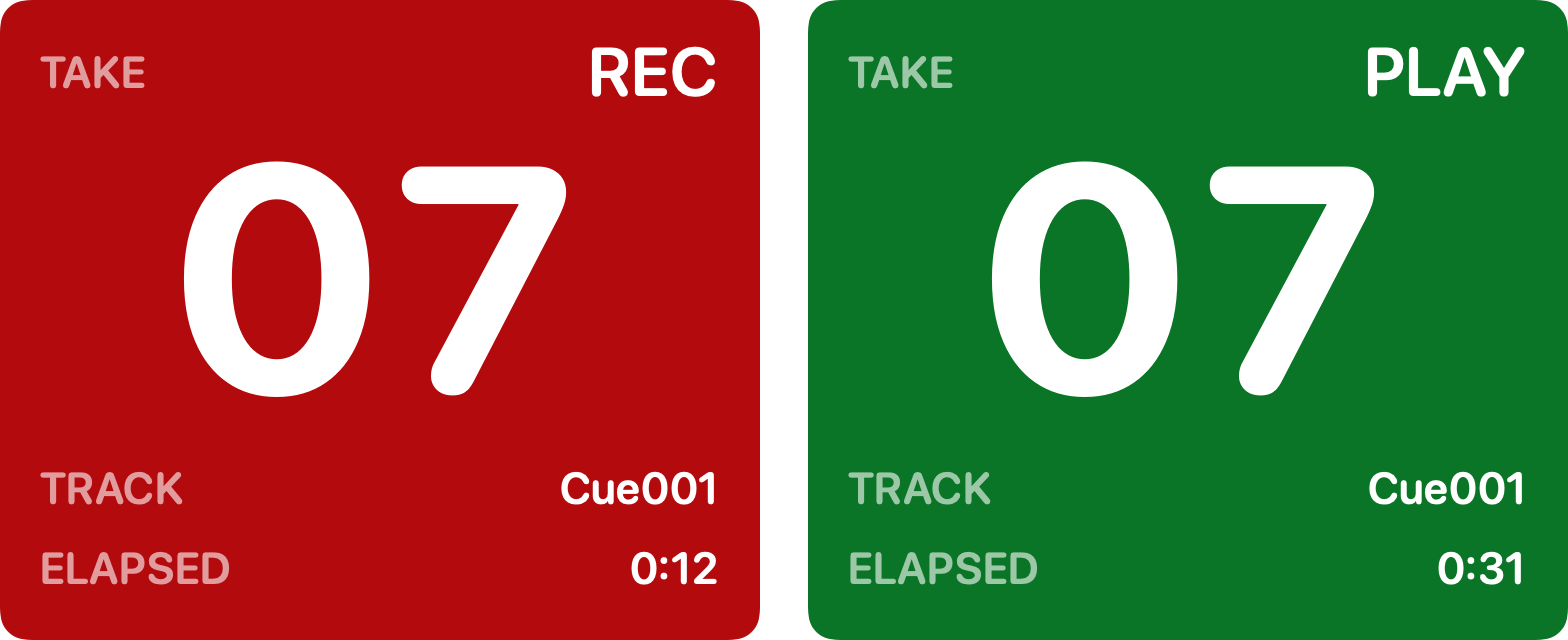
The whole team can follow the session in a web browser on an iPad, laptop or phone, with nothing to install: the producer at the back of the room, the director on the couch, the talent on a music stand. Turn on Background follows transport and any of them becomes a record lamp.
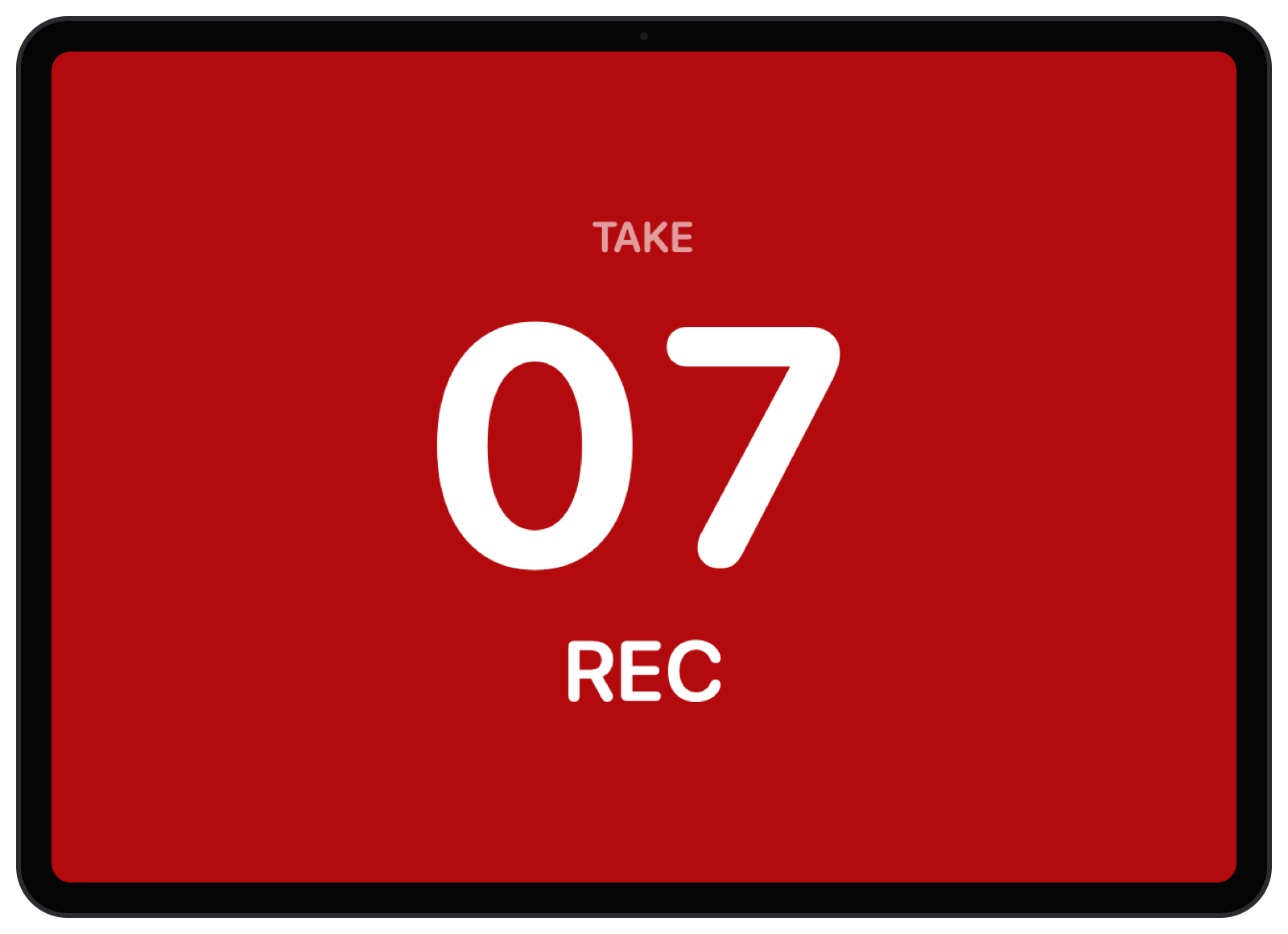
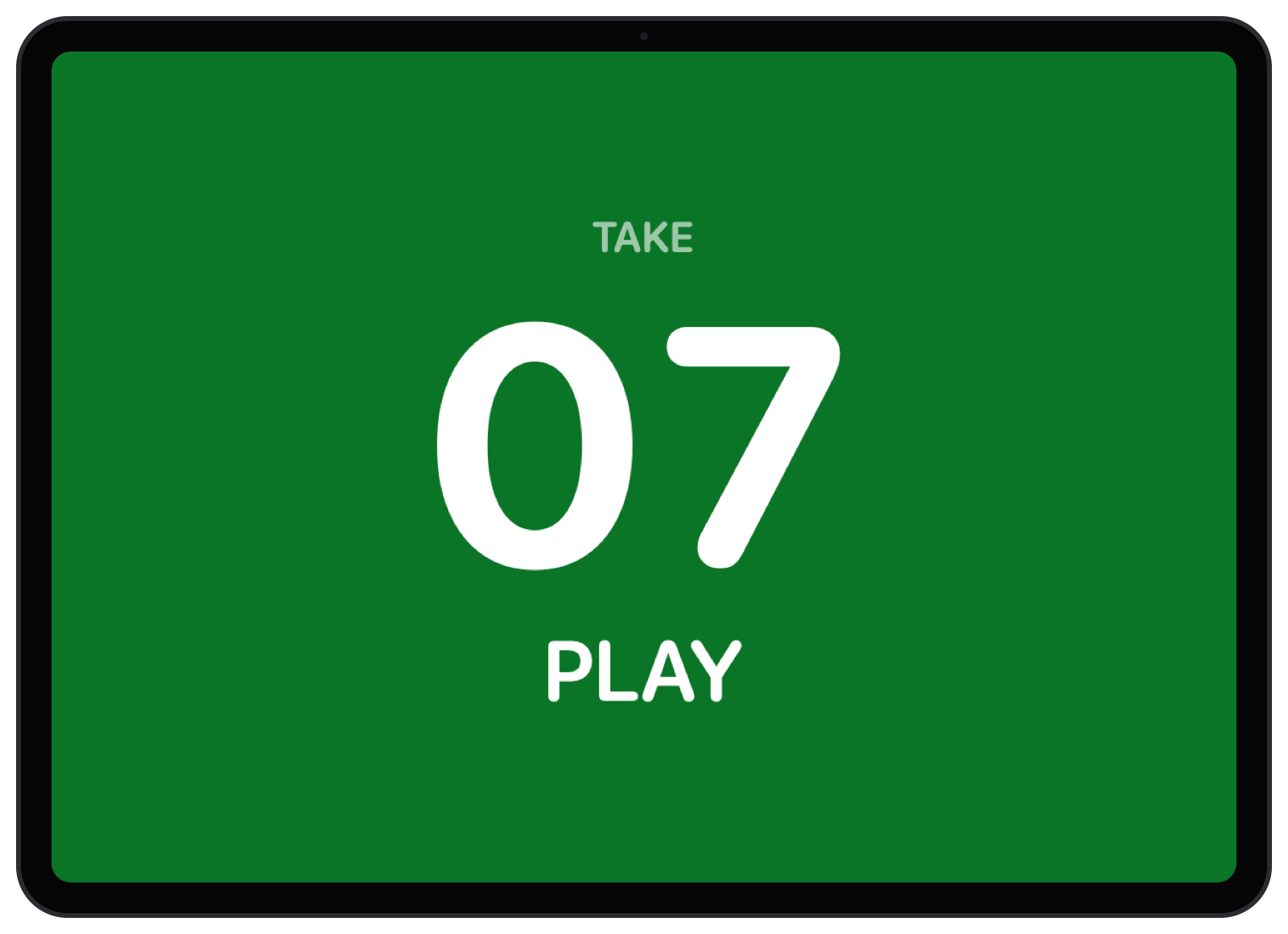
The whole screen turns red while Pro Tools records and green on playback, with the take on it. Prop one outside the booth door, on the talent’s stand or on the producer’s desk, and everyone knows when you’re rolling without asking.
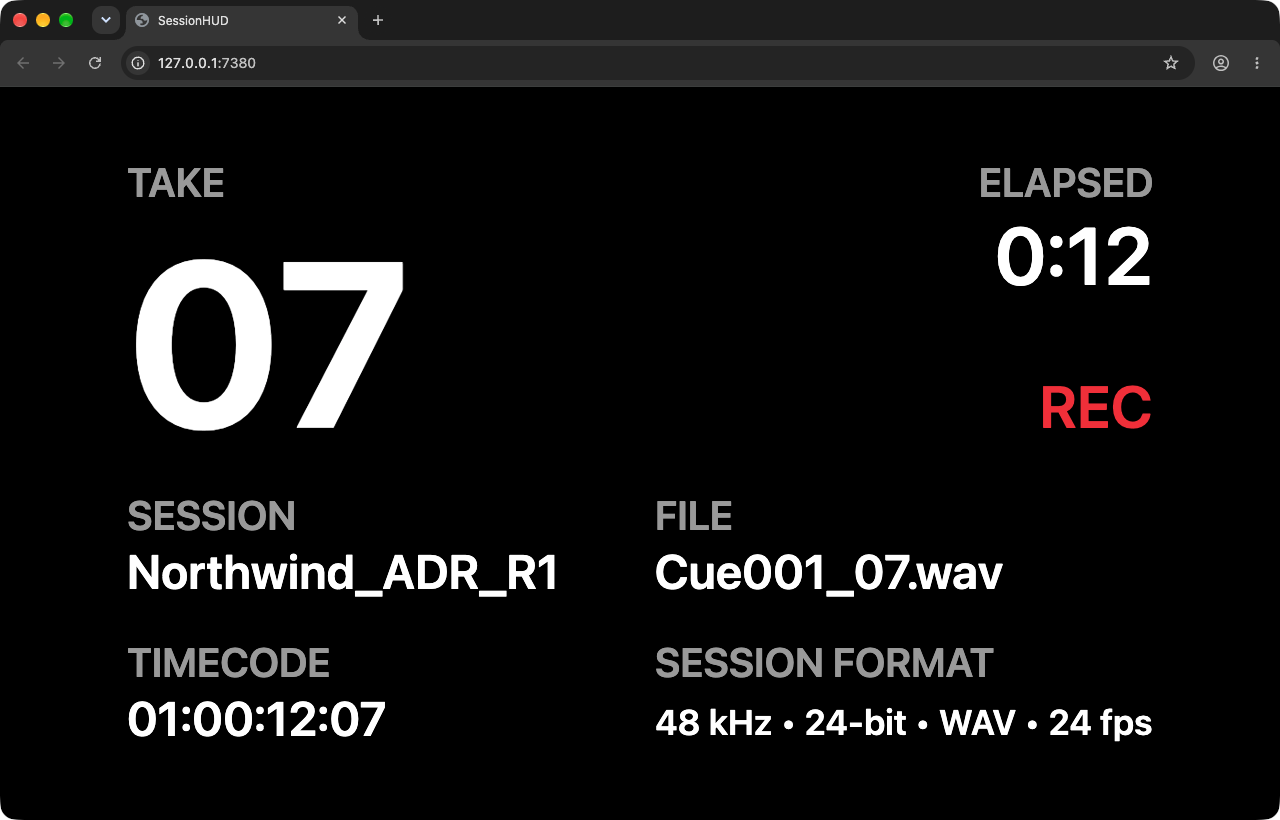
- One layout, every screen. Pick a browser layout, from a single big take number to a full slate with session, file and timecode, and every open page shows the same take at the same moment.
- Stream Deck, Companion and OBS. A built-in feed lets a Companion button show the take and turn red while you record.
The API reference, with recipes for Companion, OBS and a tally light.
HUD window
On your desk, over Pro Tools
A floating panel you place anywhere, at the size and opacity you choose, that stays in front of Pro Tools while you work.
- Click-through. Leave it over the edit window and click straight through it.
- Share just the panel in a call. Zoom, Meet and Teams leave always-on-top windows out of their share pickers. Turn on Shareable in video calls and the panel stops floating, so you can share it on its own.
- Room for long names. It can widen to fit a long track name rather than cutting it off.
Layouts and looks
Made for each screen, and for your room
The HUD window, booth display and browser each come with layouts composed for them: a counter, a take card, a recording slate, a post-production clock, a take timer and a talent card, plus a one-line strip on the HUD window and browser and a record-lamp layout on the HUD window, the display and the browser. Choose a color profile and a typeface for each layout, then set its size and opacity.
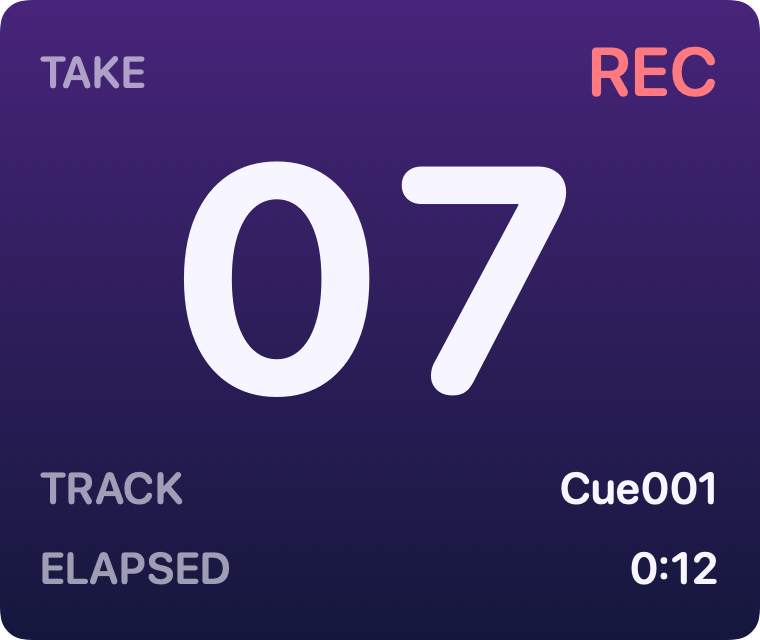
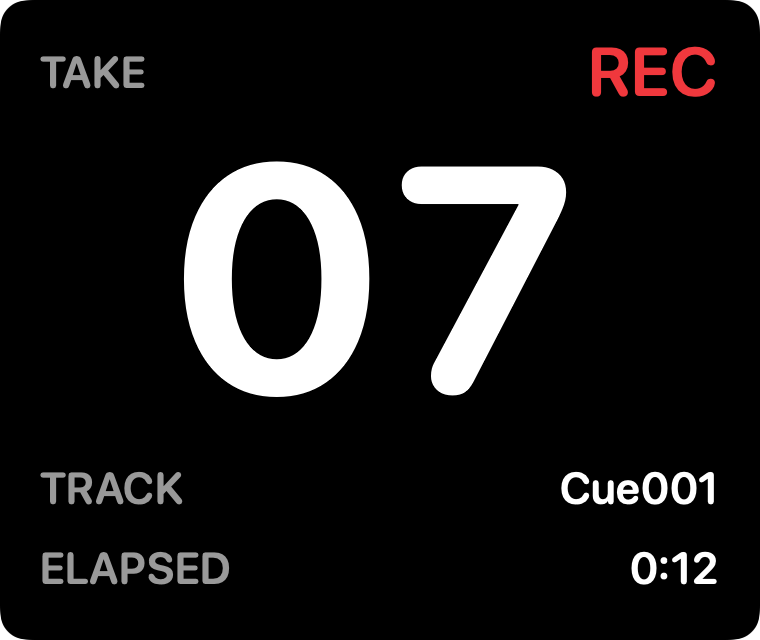
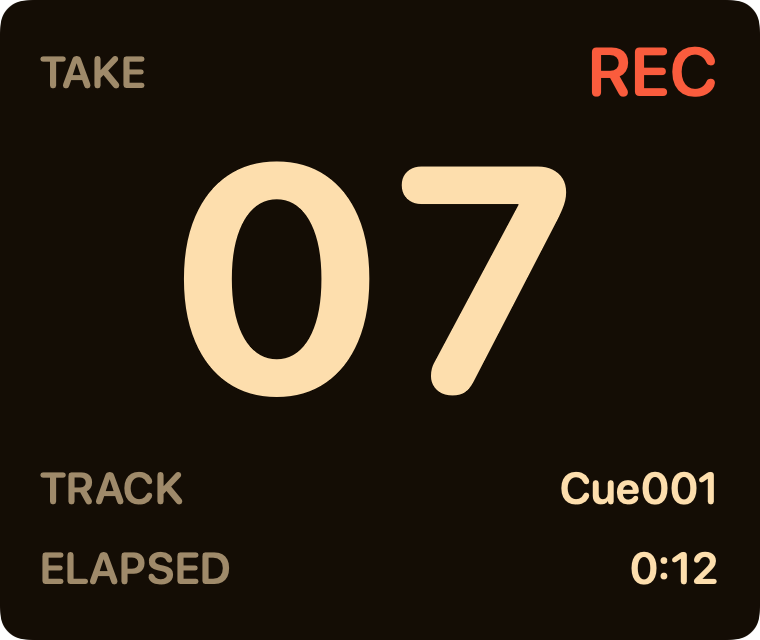
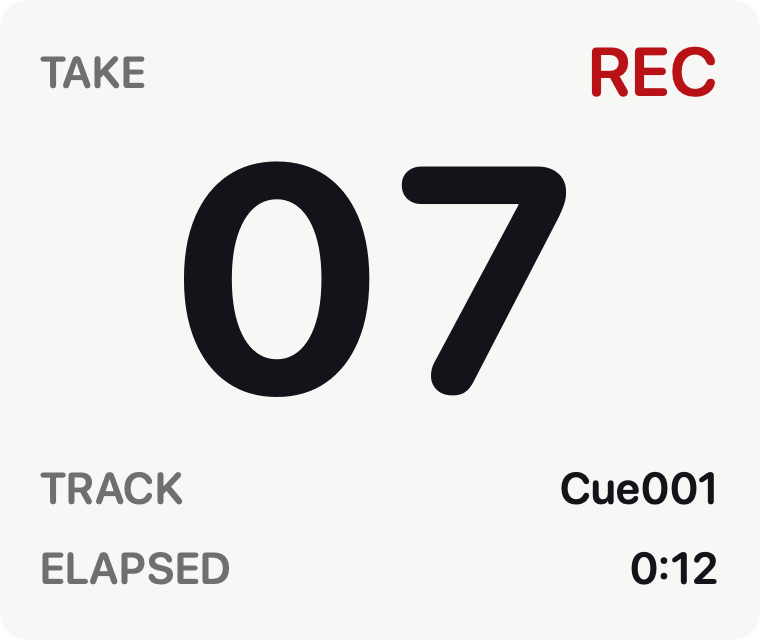
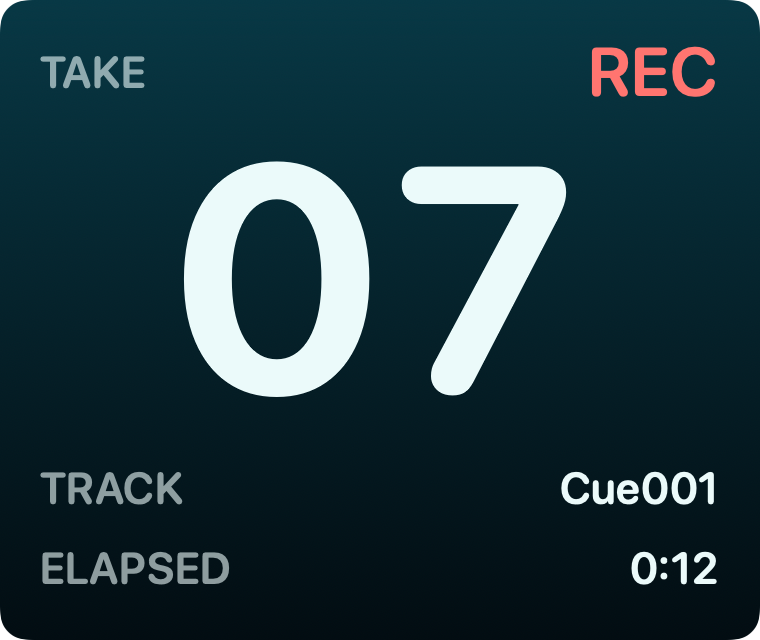
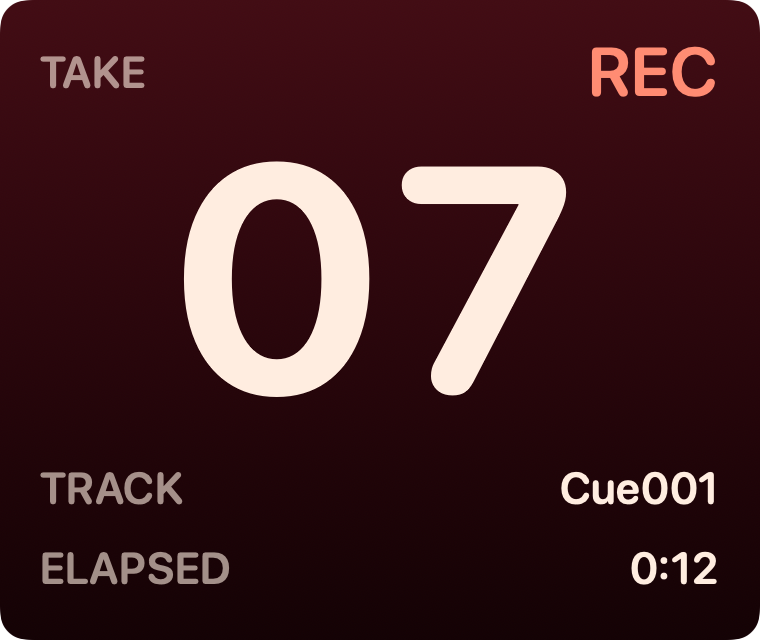
The Normal layout at take 07, in six of the ten color profiles. Every profile is checked for contrast in every state, so none of them can make a take number hard to read.
- Design your own. Drag fields onto a canvas: take, track, file, transport and record mode, elapsed and timecode, session format, and the talent, role, client, project, engineer and note you type in. Not available during the evaluation.
- Your studio’s brand. Put your logo on any output. It travels inside the layout file when you export it to another room. Not available during the evaluation.
- Show it only when it matters. Any field can appear only while recording, only while stopped, or only once there is something to show. Not available during the evaluation.
See every included layout or read about the designer.
Try it in your next session
Every output, the camera included, is free for 14 days with the built-in layouts. Designing your own layouts and adding your branding are not available during the evaluation.
It’s light on your Mac, too: with the HUD window and booth display running, about one percent of the CPU with a session open, and a few percent while recording.
SessionHUD is a Mac app. Open this page on your Mac to download it.